Linking Jira Tickets
Connect your Jira instance to Unwrap's Linked Actions to seamlessly bridge customer feedback with development work. With full Jira support, you can search and link existing tickets, create new tickets directly from Unwrap, or paste a ticket URL to instantly connect it to your customer insights.
What You Can Do with Jira
| Feature | Description |
|---|---|
| Search & Link | Search your Jira projects directly within Unwrap and link existing tickets to groups |
| Create Tickets | Create new Jira tickets without leaving Unwrap—pre-filled with context and sample feedback |
| Paste URL | Paste any Jira ticket URL to instantly link it to a group |
Setting Up Your Jira Connection (OAuth)
Unwrap uses OAuth to securely connect with your Jira instance. This gives Unwrap the permissions needed to search, create, and sync tickets while keeping your credentials safe.
Step 1: Start the Connection
- Navigate to your Organizations page
- Find the Jira integration under "External Ticket Integrations" and click Connect
Step 2: Authorize with Atlassian
- You'll be redirected to Atlassian's authorization page
- Review the permissions Unwrap is requesting and click Accept
- Select the Jira site(s) you want to grant Unwrap access to
- Once authorized, you'll be redirected back to Unwrap
That's it! Your Jira connection is now active and ready to use.
Connecting Multiple Jira Workspaces
If your organization uses multiple Jira workspaces (for example, separate instances for different teams or products), you'll need to authorize each one individually.
To add additional Jira workspaces:
- Go to your Organizations page
- Click the Connected button next to your Jira integration
- Click Add Jira instance to start the OAuth flow for the new workspace
- Complete the authorization process for the additional workspace
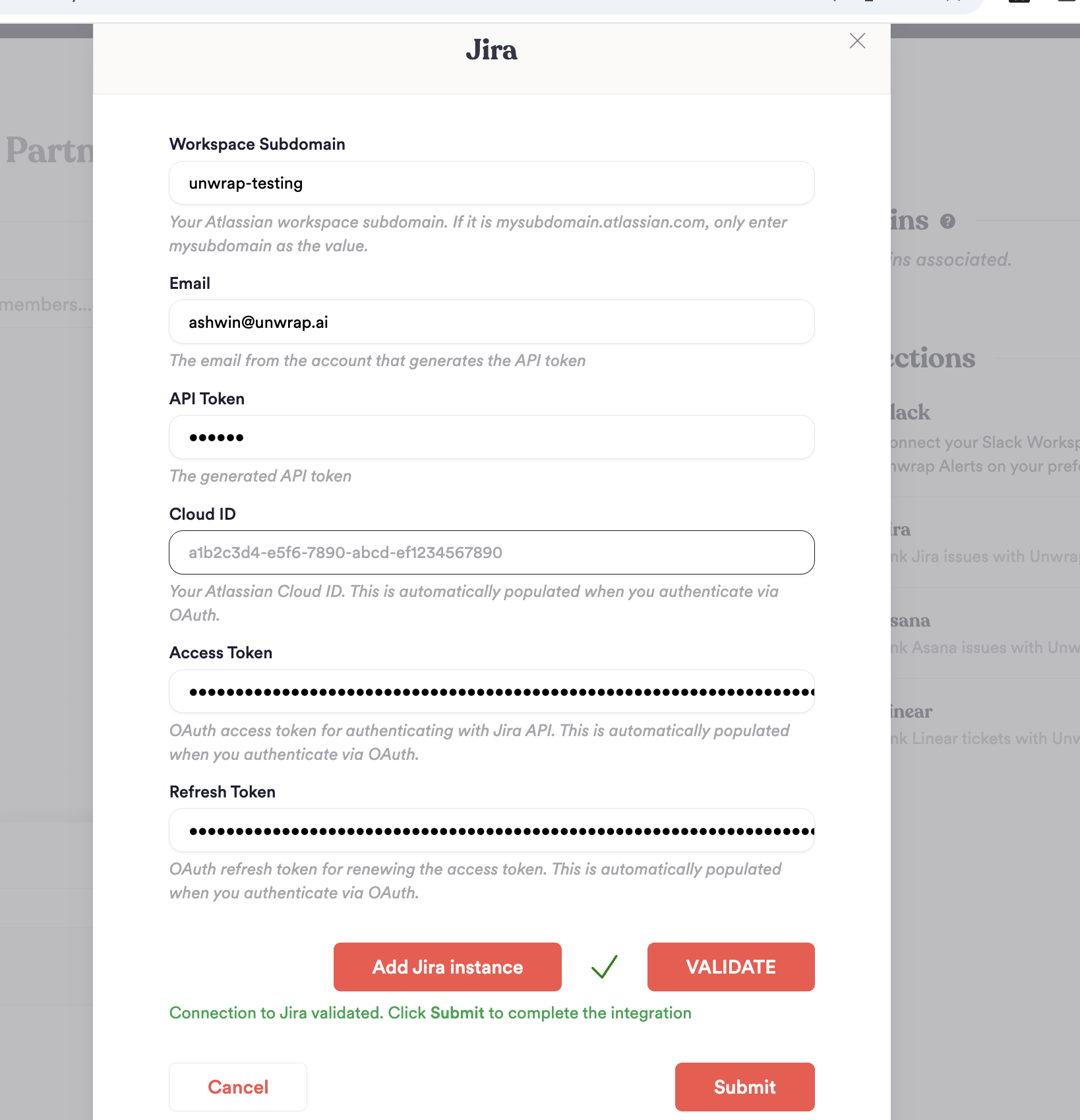
Each workspace you connect will appear in your Jira resources list, and you can select which workspace to use when creating or searching for tickets.
Existing Basic Auth Connections (Legacy)
If you previously connected Jira using the API token method (email + API token), your connection will continue to work for searching and linking existing tickets. However, basic auth connections do not support:
- Creating new tickets from Unwrap
- Paste URL linking
To unlock these features, we recommend upgrading to the OAuth connection:
- Go to your Organizations page
- Click the Connected button next to your Jira integration
- Follow the OAuth authorization flow described above
Your existing linked tickets will remain intact—upgrading simply enables the additional features.
Troubleshooting
OAuth Authorization Failed
- "Access Denied" error: The account authorizing Unwrap may not have permission to grant access. Try with a Jira account that has admin or sufficient project permissions, this may mean asking your Jira administrator to facilitate the authentication.
- Wrong workspace selected: During OAuth, make sure you select the correct Jira site. If you selected the wrong one, you can add the correct workspace using "Add Jira instance."
Can't Create Tickets (Legacy Connection)
If you're unable to create tickets, you may be using a legacy basic auth connection. Upgrade to OAuth by clicking "Connected" next to your Jira integration and completing the OAuth flow.
Workspace Not Found When Pasting URL
When pasting a Jira ticket URL, Unwrap automatically matches the URL to your connected workspaces. If you see a "Workspace not connected" error:
- Verify the URL is from a Jira workspace you've authorized
- If not, add that workspace using "Add Jira instance" from your Organizations page
Ticket Sync Issues
Unwrap keeps ticket status synced with Jira. If you notice tickets aren't updating:
- Check that your OAuth connection is still valid
- Try unlinking and re-authorizing if issues persist
Need Help?
If you're experiencing issues with your Jira integration, please reach out to us at contact@unwrap.ai or through any support channel with:
- Your Jira workspace URL
- The email address used to authorize the connection
- Any error messages you're seeing
- Whether you're using OAuth or a legacy basic auth connection