Connect Unwrap Assistant to Slack
Last updated: October 1, 2026
Note: This article covers allowing your team to chat with Unwrap Assistant directly from Slack. If you are looking to allow Unwrap to send messages to your Slack workspace, see. Allow Unwrap to Send Alerts and Reports in Slack. If you are looking to ingest feedback you receive in Slack, see Integrating Feedback from Slack.
Use Unwrap Assistant in Slack to ask questions about your feedback directly where your team already communicates. Answers are grounded in the feedback and context from your connected Unwrap organization.
Overview
Unwrap Assistant connects your Unwrap organization to your Slack workspace. The Unwrap Assistant Slack app can be added to any Slack channel in your workspace, and members of that channel can begin asking questions. Users in your Slack workspace do not need an Unwrap account to use Unwrap Assistant in Slack.
Before you begin
Your organization should have:
At least one view with feedback in Unwrap
An organization default view configured (recommended). If no default is set, users can still pick a view with
/unwrap view, but the assistant cannot answer until a view is selected or a default exists.
How to connect Slack (authentication)
Connection is done once per Slack workspace and links that workspace to one Unwrap organization.
Step 1 — Start in Unwrap
Sign in to Unwrap as an organization administrator.
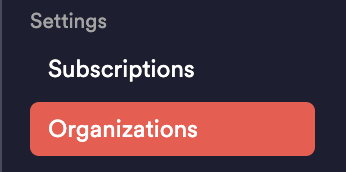
Open your organization settings.
Go to the Connections section.
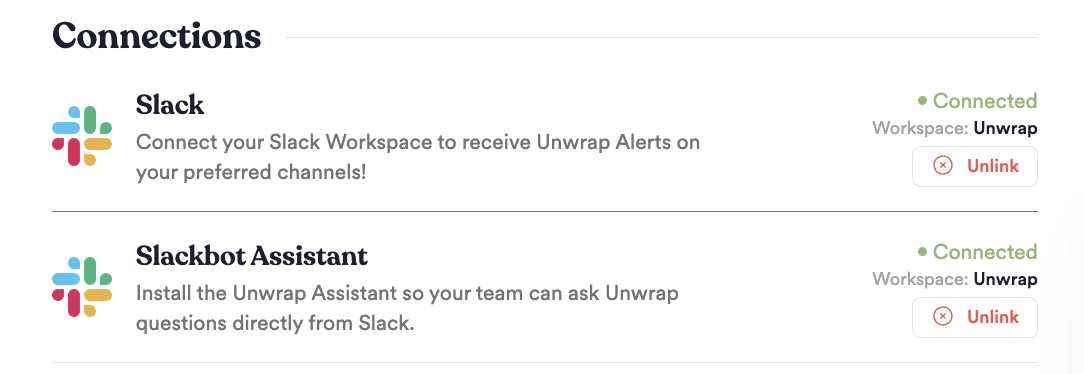
Find Slackbot Assistant and choose Connect.
Step 2 — Approve in Slack
You'll be prompted to authenticate Slack. Please ensure you have admin rights for your Slack workspace before you complete this connection, or ask a colleague with admin rights to complete this.
If your Slack workspace or apps are managed by a service account, please have a colleague with access to the service account go through the connection flow.
Review the permissions Slack shows on the consent screen for Unwrap Assistant.
Choose Allow to finish.
Step 3 — Confirm
You are returned to Unwrap.
Confirm Slackbot Assistant shows as Connected, including the Slack workspace name.
If you need to refresh permissions later (for example, after Unwrap adds new capabilities), an administrator should **unlink** Slackbot Assistant in Unwrap and connect again through the same flow. Reinstalling only from the Slack app directory does not update the connection Unwrap uses.
What the person connecting needs
Permission to manage organization connections in Unwrap (typically an organization administrator).
Permission in Slack to install or approve apps for the workspace (often a Slack workspace owner or admin).
Slack permissions
When you connect Slackbot Assistant, Slack asks you to approve bot permissions for Unwrap Assistant. These allow the app to read mentions, reply in channels and direct messages, show status while working, and use Slack’s assistant features.
Permission | Why Unwrap needs it |
See messages that directly mention the app | Respond when someone @mentions Unwrap Assistant in a channel |
Send messages as the app | Post answers in threads and direct messages |
Send messages to channels the app isn’t a member of | Reply in public channels after the app is used there |
View direct messages with the app | Answer questions in direct messages and in Slack’s agent experience |
Add reactions | Show a brief “working on it” indicator on your message |
Use assistant features | Suggested prompts, thread titles, and status in Slack’s assistant UI |
View user profiles | Audit history |
Using Unwrap Assistant in Slack
After the workspace is connected, all workspace members can use Unwrap Assistant in the ways below.
In a channel
Add Unwrap Assistant to the channel if it is not already there (in Slack: channel details → Integrations → Add apps, or invite @Unwrap Assistant).
In a message, @mention Unwrap Assistant and include your question in the same message.
Unwrap Assistant replies in the thread attached to your message. Continue the conversation by replying in that thread. In the channel experience, you need to @mention the assistant in every message.
Anyone who can post in that channel can ask questions. They do not need an Unwrap account.
Changing which view you use (`/unwrap`)
Use the `/unwrap` slash command in Slack (available after the workspace is connected). Command results are visible only to you unless noted otherwise.
Command | What it does |
|---|---|
| Shows which view Unwrap Assistant is using for you and whether that came from your choice or the organization default |
| Lists all view names in your organization (visible only to you) |
| Opens a picker to choose any view in the organization |
After you save a new view in the picker, your next questions use that view. If you run /unwrap view inside an existing thread, that thread’s conversation may reset so follow-ups stay aligned with the new view.
Organizations with many views may see the first portion of the list in the picker (sorted alphabetically). Use /unwrap list to browse all names.
Data Access and Views
Who can access Unwrap Assistant in Slack
This is different from who can sign in to the Unwrap web app.
In Slack | In the Unwrap web app |
All members of the connected Slack workspace | Only people with Unwrap accounts can sign in |
No Unwrap login is required to ask questions | Roles and permissions control what each user sees |
Views: Broader access in Slack than in Unwrap
In Slack, any user who can use the bot can ask questions against any view in your organization, including views they are not assigned to in the Unwrap UI.
A Slack user can run
/unwrap listand/unwrap viewto see and select from all organization views.Unwrap’s normal per-user view restrictions in the web app do not apply to Unwrap Assistant in Slack, though Unwrap's Slack app is READ only.
If your organization has sensitive views that should not be queryable by everyone, treat Slack workspace membership as carrying that access once Unwrap Assistant is connected. Only connect workspaces whose members should be able to explore all organizational feedback through the assistant.
Which feedback the assistant uses
Answers are based on the view selected for that Slack user:
That person’s personal view choice, if they set one with
/unwrap view, orYour organization’s default view, if they have not chosen one.
All organization views are available in Slack
Every Slack user who can use the bot can switch to and query any view in the organization using /unwrap list and /unwrap view. This is not limited to the views they can open in the Unwrap web app.
View switching affects that person’s questions going forward. It does not change what other people in Slack see unless they change their own preference.
Organization default view
Administrators set the default view under Organization → Views in Unwrap. That default applies in Slack for anyone who has not picked their own view.
If no default is configured, Unwrap Assistant will prompt an administrator to set one, or the user can run /unwrap view to choose a view.
What works well (and what to avoid)
Supported
Plain-text questions (and the same types of analysis you expect from Unwrap Assistant in the product)
Follow-ups in the same thread
Charts and tables when relevant (very large tables may direct you to Unwrap for the full version)
Not supported yet
File uploads, images, or other attachments in Slack messages
Empty messages or special Slack message types (for example, some shared-file messages)
If you send unsupported content, Unwrap Assistant will ask you to send a plain-text question instead.
Privacy and security
Workspace connection is approved by an authorized person in both Unwrap and Slack.
Questions in Slack are answered using your organization’s Unwrap data for the selected view.
All Slack workspace members can use the bot without signing in to Unwrap; channel access still follows your Slack channel permissions.
All organization views can be selected in Slack regardless of a user’s Unwrap UI permissions.