Unwrap MCP
Last updated: October 15, 2026
What is an MCP?
MCP stands for Model Context Protocol, and is an open-sourced standard developed by Anthropic to connect external data and tools to AI models.
The Unwrap MCP gives you access to the same tools that power the Unwrap Assistant, allowing you to get the same great Assistant experience natively in your AI model of choice.
Connecting to Claude Desktop/Web
Click the following link to go to the official Anthropic certified Unwrap Connector: Unwrap Connector
Click "Add to your team"
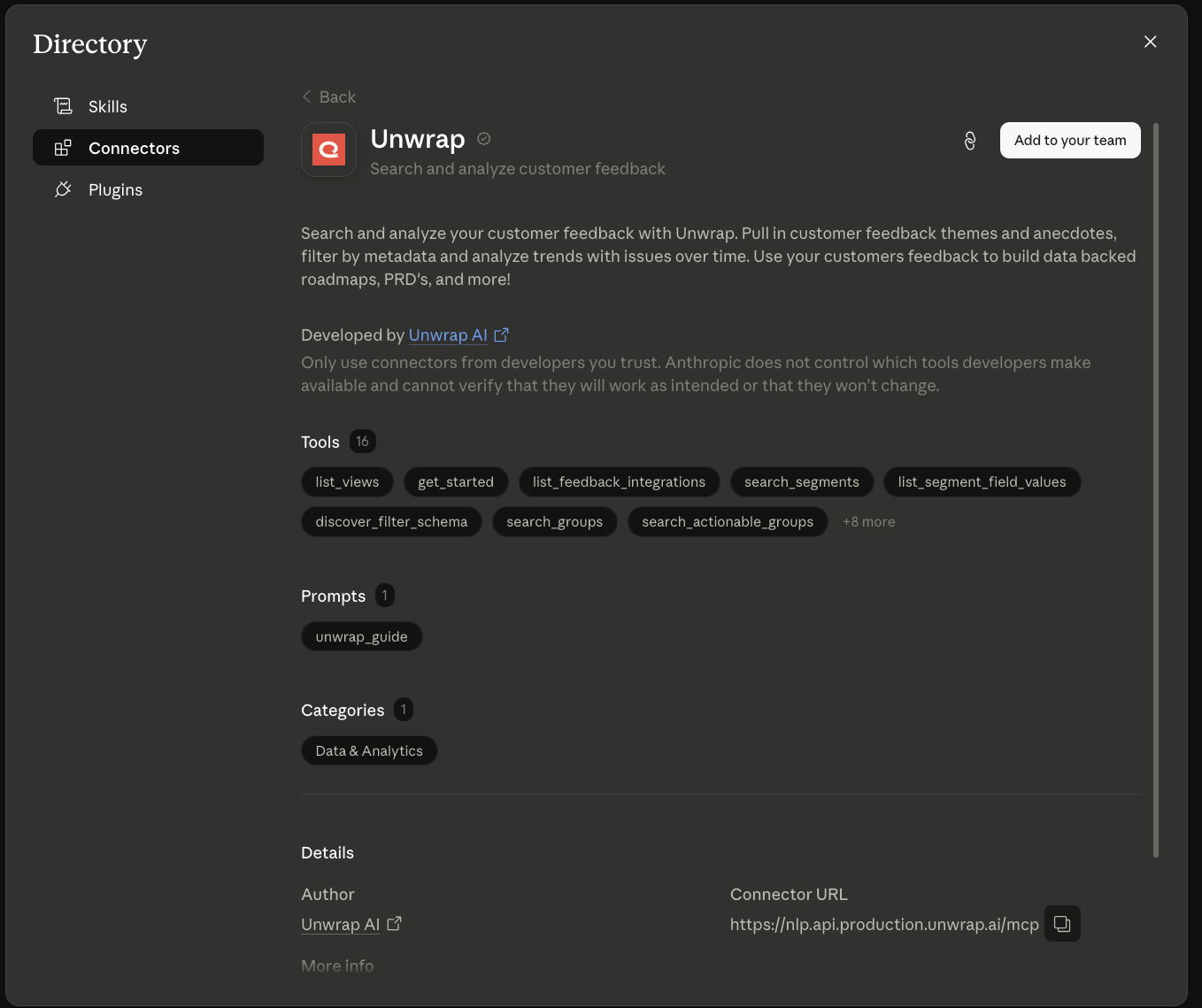
Go to Settings (not Organization Settings!) > Connectors > Unwrap, and do the following:
Click Connect on the Unwrap MCP, if it's not already connected.
Set all Read-Only tools to "Always Allow", and Write/Delete tools to "Needs Approval". This will ensure that Claude will automatically detect the tools to be used.
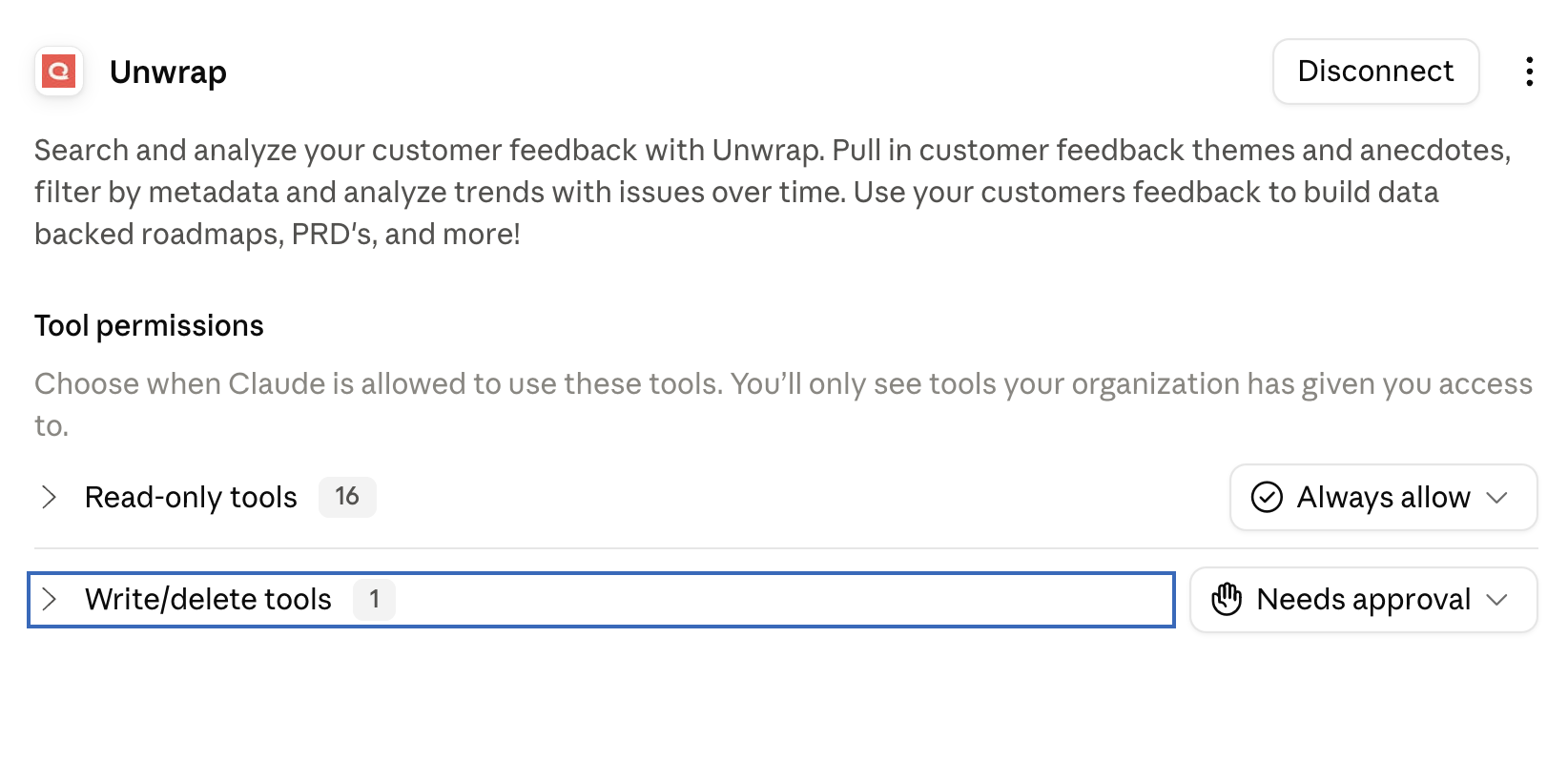
Done!
Connecting to Claude Code
In a terminal, run
claude mcp add --transport http unwrap https://nlp.api.production.unwrap.ai/mcpEnter claude code with the
claudecommandUse the
/mcpcommand, selectunwrapfrom the options, and authenticate the unwrap mcp
Connecting to ChatGPT/Codex
Install the Unwrap Plugin: https://chatgpt.com/plugins/plugin_asdk_app_6a7b61e2666c8191a518f289702e269c?q=unwrap
Auth on the redirected Unwrap site, and you're done! You should be auto-redirected back to ChatGPT
Connecting to Codex CLI
Open a terminal
Ensure you have codex cli installed.
codex --helpshould not errorRun
codex mcp add unwrap --url https://nlp.api.production.unwrap.ai/mcp, and authenticate with Unwrap. You should be able to return to your terminal after authenticating.Run
codexInside codex, run
/mcp, and you should see unwrap listed and authorized!
Connecting to Cursor
Go to Cursor > Settings > Cursor Settings > Tools & MCP
Add a new MCP server

In your mcp.json,
If you have other mcp servers, add the below inside the
mcpServersjson, alongside your other servers:
"unwrap": {
  "url": "https://nlp.api.production.unwrap.ai/mcp"
}
b. Otherwise, copy and paste the entire json, replacing the current file
{
  "mcpServers": {
    "unwrap": {
      "url": "https://nlp.api.production.unwrap.ai/mcp"
    }
  }
}
Save the file
Go back to your Cursor Settings, and you should see a Connect button (might have to restart Cursor to see this). Click connect. You will be redirected to an Unwrap permissions page. Select your organization, and click "Allow". This should redirect you back to Cursor.
If the connection was successful, you should see something like this in Cursor's Tools and MCPs section

Connecting to Gemini CLI
Run the following command in a terminal, to add Unwrap to your Gemini CLI:
gemini mcp add --transport http unwrap https://nlp.api.production.unwrap.ai/mcpThen, run the
geminicommand to enter your Gemini chat sessionUse the /mcp command, and select the
authoption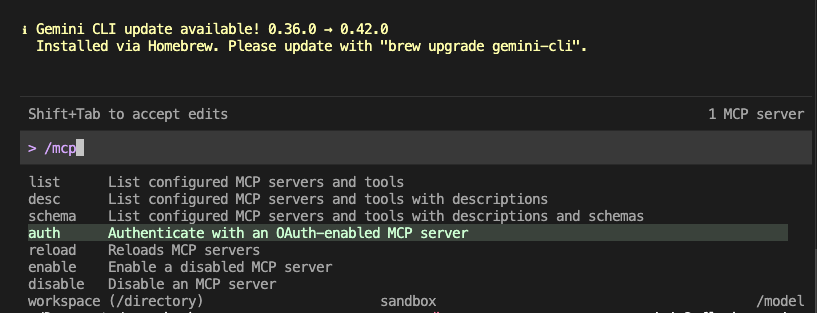
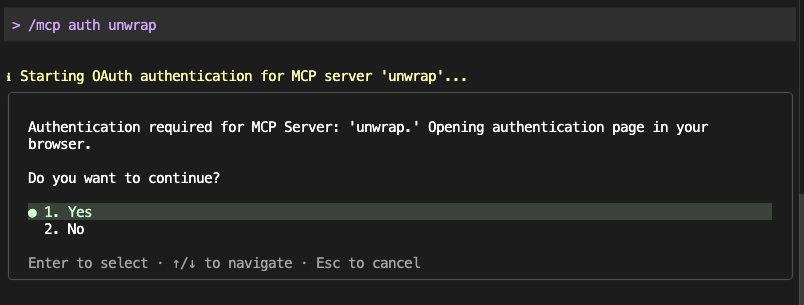
Authenticate with unwrap
Once authentication is successful, you should be set up. If it doesn't redirect you, just return to your Gemini session. You should see that Unwrap was successfully authenticated.
Ask questions about your data, and see Gemini use the Unwrap tools!
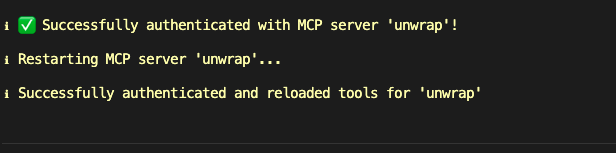
Connecting to Github Copilot
To start, please install copilot cli, if it's not already installed. Instructions are here.
In a terminal, run
copilotto enter github copilot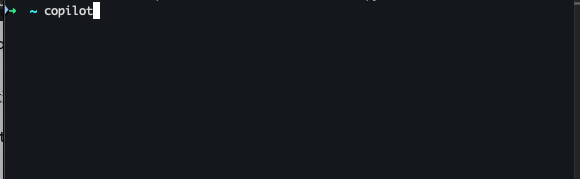
Then you'll run
/mcp add unwrap
On the next screen, do the following:
Keep the server name as
unwrap(or another appropriate name)Set Server Type as
HTTPSet the server url as
https://nlp.api.production.unwrap.ai/mcpLeave HTTP Headers blank
Leave Tools as
*(should already be set as the default)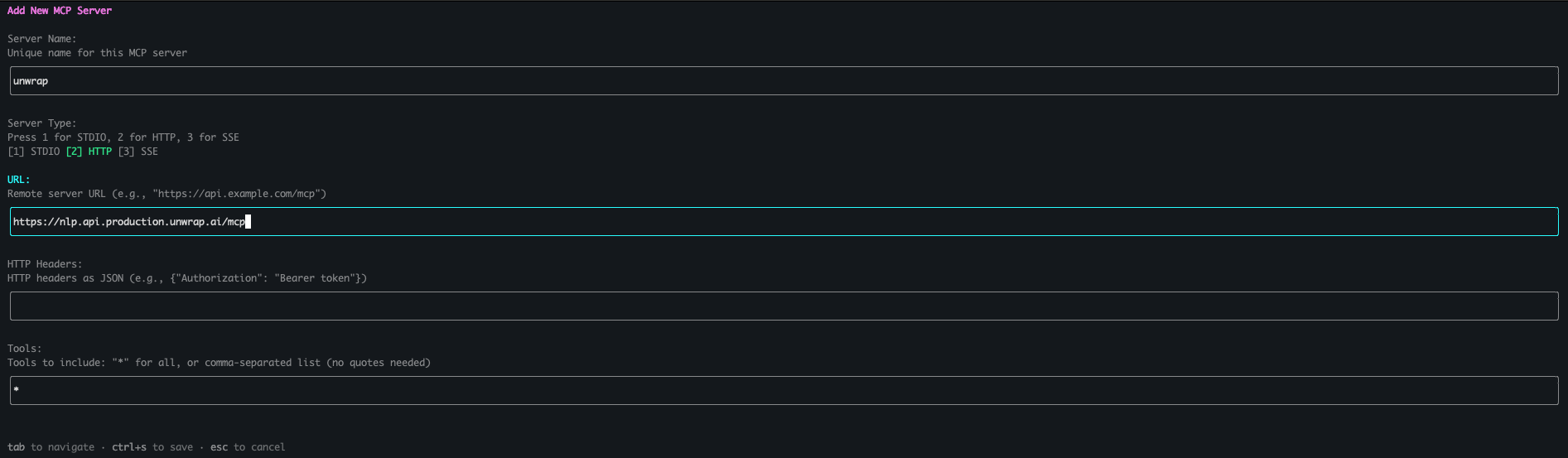
Hit Ctrl + s to save, and then follow the prompts by hitting "Enter" to authenticate
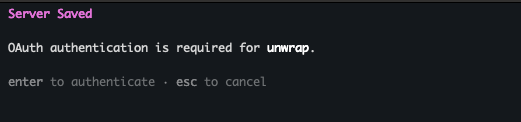
You should be redirected to Unwrap to authenticate. Once you've authenticated, return to your Copilot window, escape out of the mcp configuration window with the 'Esc' key, and you should be able to ask questions about your Unwrap data!
Static OAuth Connection
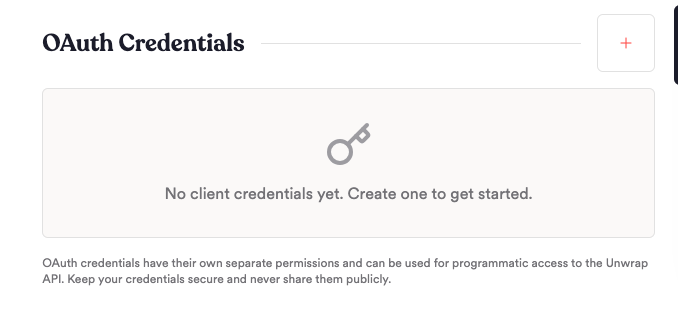
If you want one shared set of credentials to use for all users in your entire org, you may create static OAuth credentials to connect to the Unwrap MCP. This will give read access to all views in your org, to any user that uses the credentials. You need to be an Admin of your Unwrap org to create the credentials.
Generate an OAuth Client ID and Secret from your Organizations page in Unwrap. On the Organizations page, the OAuth Credentials section is in the bottom right. You'll need a callback url for this. This usually will be listed on the MCP clients doc page. You need this to be able to use the static credentials with a client.
Once you get the static OAuth credentials, follow the steps on each MCP clients docs to add the static credentials in the right spot.
Auth and Token endpoints
Some MCP clients require an auth and token endpoint. This is usually automatically detected by the client, but if your client requires these fields, they are:
Authorization endpoint:
https://nlp.api.production.unwrap.ai/oauth/authorizeToken endpoint:
https://nlp.api.production.unwrap.ai/oauth/token
Usage
To use, just start asking questions about your feedback! If your client isn't picking up that it should use the Unwrap MCP automatically, you can explicitly ask it to use Unwrap. For eg: "Using Unwrap, get me the top issues customers are facing"
For the best experience, use the Unwrap Guide prompt vended by our MCP. This will teach your LLM how to operate with our tools and data.
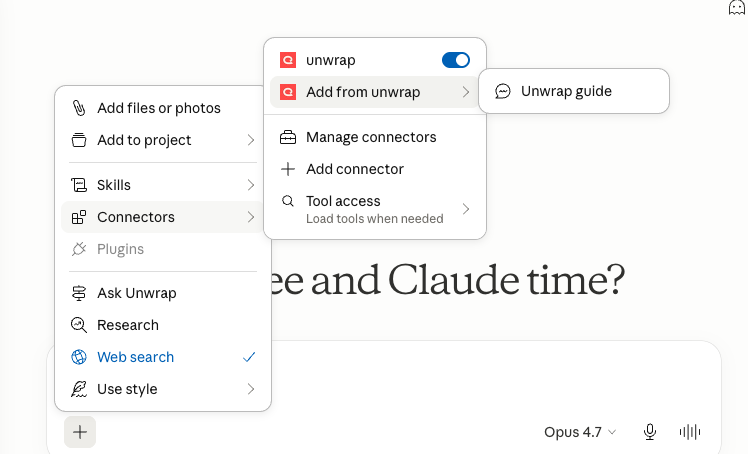
Example of how to add the guide with Claude
Views
The first thing your LLM client will try to figure out is what View you're asking about. It will use the list_views tool to list the Views that you have permissions for. Select the View that you want it to use for the rest of it's queries.
Querying data
Now that you've selected a View, start querying data! Ask any questions you want about your customer feedback in natural language, and your LLM Client will be able to use the Unwrap tools to explore your teams feedback, and give you a data backed answer.
Suggested Questions
What are my top issues for the last 90 days?
Can you filter down to just issues about X, and show me how they've trended over the last 6 months?
Can you find me customer feedback around feature X, and then write me a priority ranked PRD, with customer anecdotes and links?
If you have any issues with your client calling Unwrap tools, try to just tell it to explicitly perform your action using Unwrap. Eg:
Using Unwrap, what are my top issues for the last 90 days?
Connection Issues
If you're experience connection problems, try going to your LLM Client settings, find the Unwrap MCP, disconnect it, and reconnect it. If the issue still persists, please reach out to our support team.
Tools
All Unwrap tools are currently read-only.
Tool | Description | Dependencies |
list_views | Lists the authenticated org’s available views, including view_id, view_name, and org_name. | None |
leave_feedback | Leave feedback on the MCP directly to the Unwrap team | None |
get_started | Call this first when using Unwrap. Returns the core usage guide, including the data model and recommended workflows. | list_views to get a view_id to initialize |
list_feedback_integrations | Lists the feedback integrations connected to a view and summarizes source coverage. | list_views if you need to discover the view_id first |
search_segments | Semantically searches segment fields and values relevant to a question. | discover_filter_schema; also list_views if you need the view_id |
list_segment_field_values | Lists the exact allowed values for a segment field so filters use the correct spelling. | Usually, discover_filter_schema to identify the field; also list_views if you need the view_id |
discover_filter_schema | Returns all available filter fields for a view so clients can discover valid filtering options up front. | list_views if you need to discover the view_id first |
search_groups | Semantically searches taxonomy groups to find issues or themes relevant to a query. Supports optional filtering. | list_views if needed; when filtering, use discover_filter_schema and typically list_segment_field_values first |
search_actionable_groups | Returns the most actionable groups for a question, with optional filtering and numeric segment sorting. Useful for top issues and prioritization workflows. | list_views if needed; when filtering or sorting by segment, use discover_filter_schema and the relevant segment/value lookup first |
plot_chart | Generates charts or tables over time or by breakdown for trends, rankings, share comparisons, and other visual analyses. | list_views if needed; when filtering or selecting numeric segments, use discover_filter_schema -> search_segments, or list_segment_field_values first |
sample_feedback_entries | Creates a named sample of feedback entries, either as a representative random sample or a targeted semantic sample. | list_views if needed; if sampling with filters, use discover_filter_schema and list_segment_field_values first |
analyze_entry_text | Runs a custom instruction or question across all entries in a saved sample and returns prevalence statistics plus example results. | sample_feedback_entries; also list_views if needed |
classify_feedback_entries | Classifies entries in a saved sample into predefined labels and creates sub-samples for each resulting label. | sample_feedback_entries; also list_views if needed |
search_documentation | Searches Unwrap's official product docs (public help center) and returns a ranked list of matching article titles and URLs | None — this is the entry point. Call it first to get article URLs, then pass those to read_documentation_article |
read_documentation_article | Reads one or more Unwrap docs articles and returns them as markdown. Used for how-to, feature, or integration setup questions | search_documentation first to get valid article URL(s) |
query_feedback_tool | Allows users to query for Unwrap data and statistics using Unwraps query syntax | None |