Report Templates
Last updated: July 24, 2026
Report Templates let you define the instructions and structure for a type of report once, then reuse them across any product, customer, or time period—without starting from scratch each time. A template is a reusable set of standing instructions that both one-time reports and recurring subscriptions can be built from.
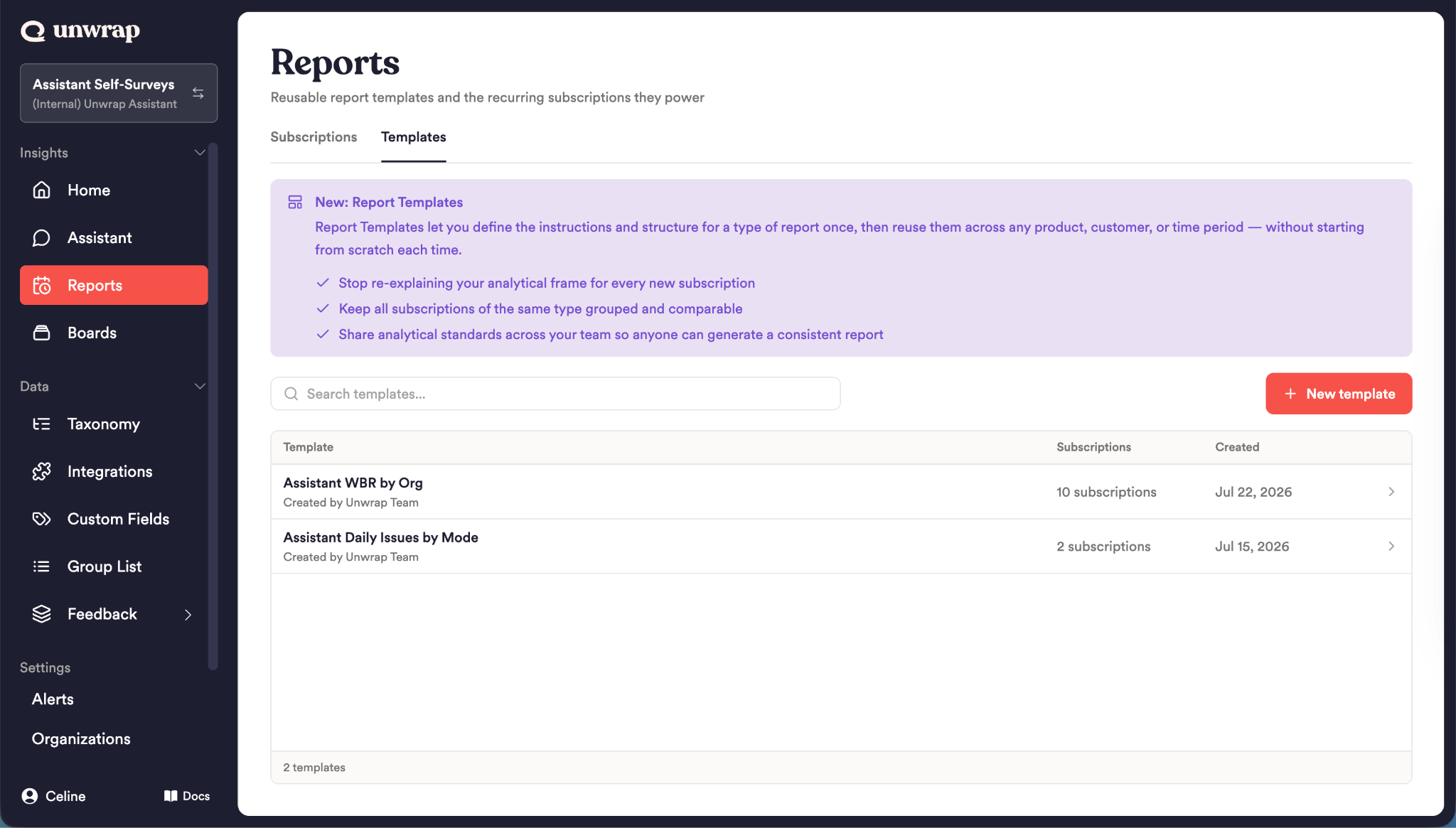
Why Report Templates matter
Teams that report on feedback tend to report the same way over and over—same framing, same sections, same standards—just for different slices of the business. Templates make that repeatable:
Stop re-explaining your analytical frame. Define how a report should be structured and analyzed once; every report and subscription from that template inherits it.
Keep reports comparable. All reports of the same type share a consistent structure, so a "Product X" report reads like a "Product Y" report.
Share analytical standards across your team. Anyone can generate a consistent, on-brand report from the template—no tribal knowledge required.
Scale to many audiences at once. Fan a single template out into dozens of subscriptions—one per product, region, or customer—each on its own schedule and recipient list.
The big idea: A template is the "recipe." From it you can cook a single dish (a one-time report), set up a standing order (a subscription), or cater for the whole company (bulk-create many subscriptions broken down by a custom field).
Availability
Report Templates are gated behind a feature flag. If you'd like it turned on for your organization, reach out to the Unwrap sales team. Once enabled, you'll find it under the Reports tab in the platform, as a Templates tab alongside Subscriptions.
Creating a template
Go to Reports → Templates.
Click New template.
Give it a title and an optional description (the description is metadata for your teammates—it is not used as report instructions).
Open the template and add its Instructions.
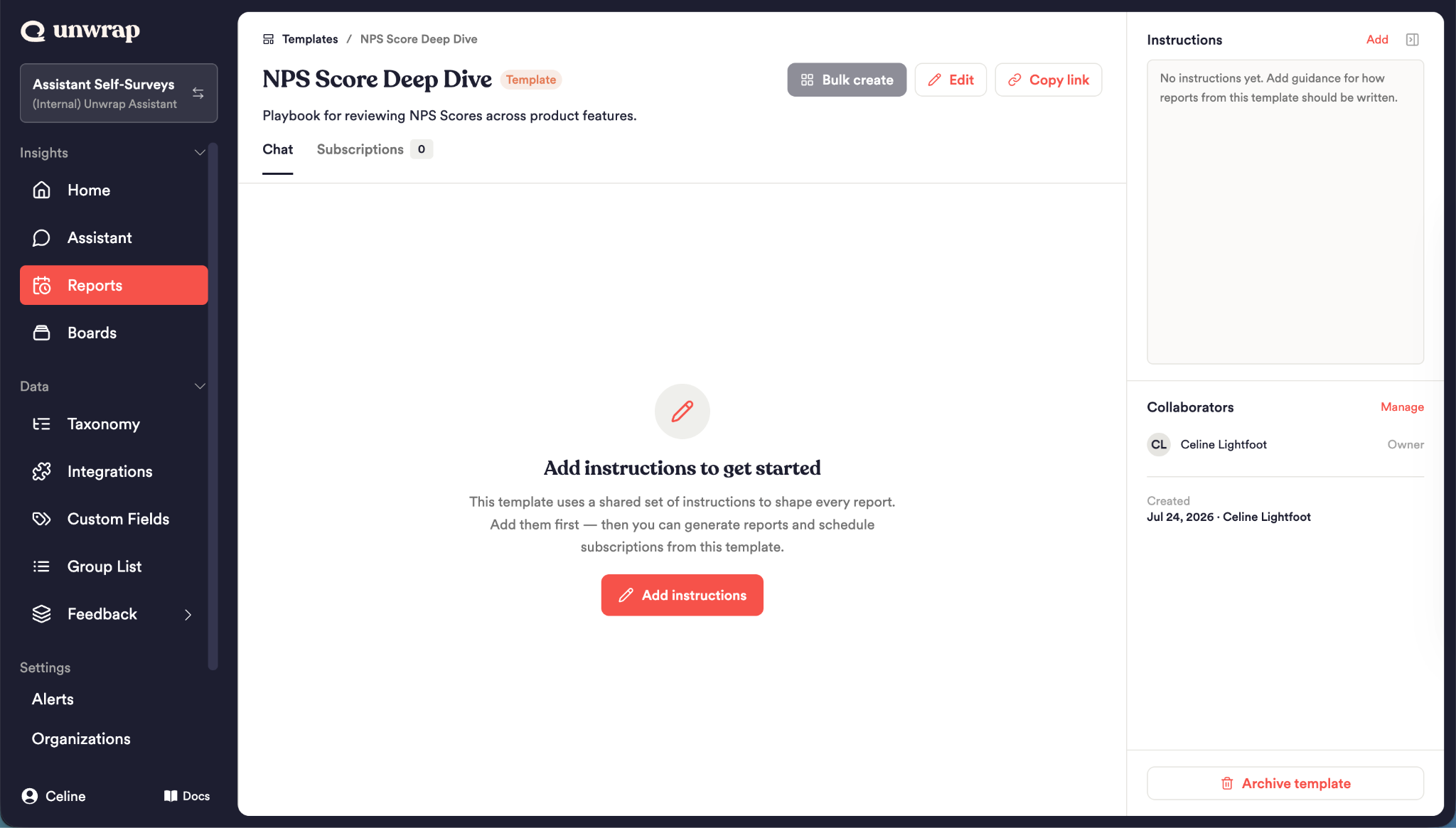
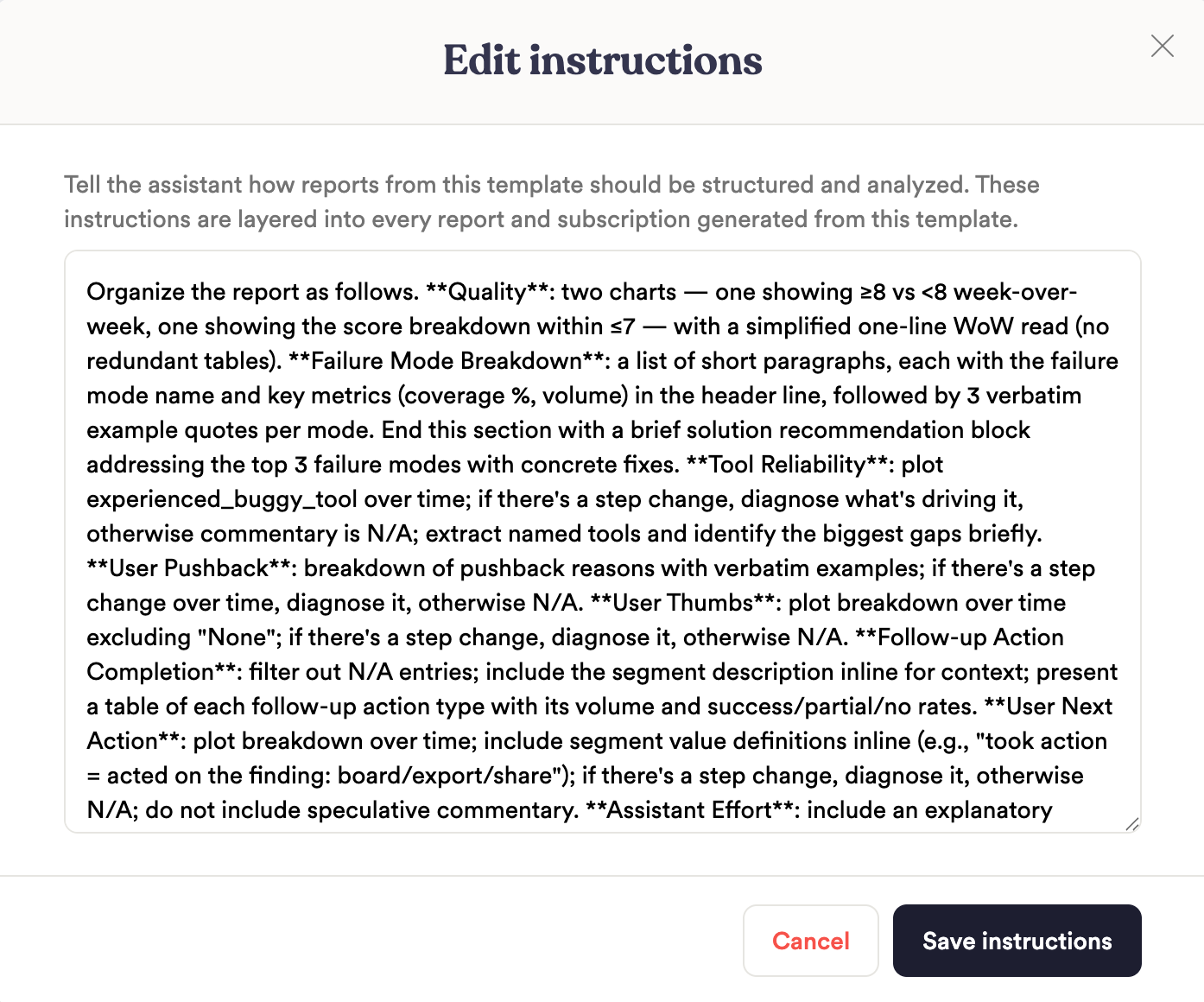
Instructions
Instructions are the heart of a template—they tell the Assistant how reports from this template should be structured and analyzed. These instructions are layered into every report and subscription created from the template.
Generating a report from a template
You can produce a report from a template in two ways.
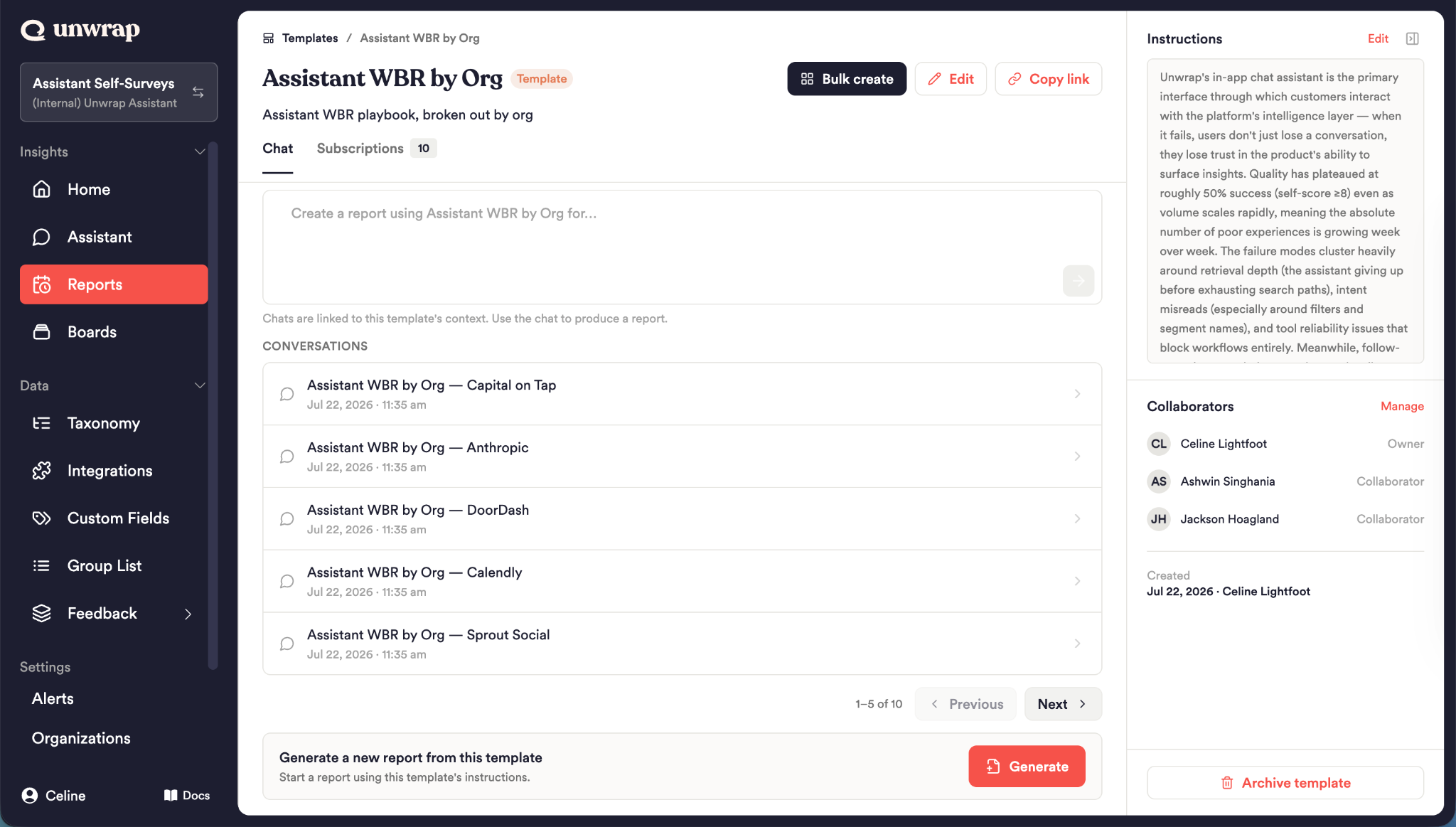
Option 1 — The Generate button (fastest)
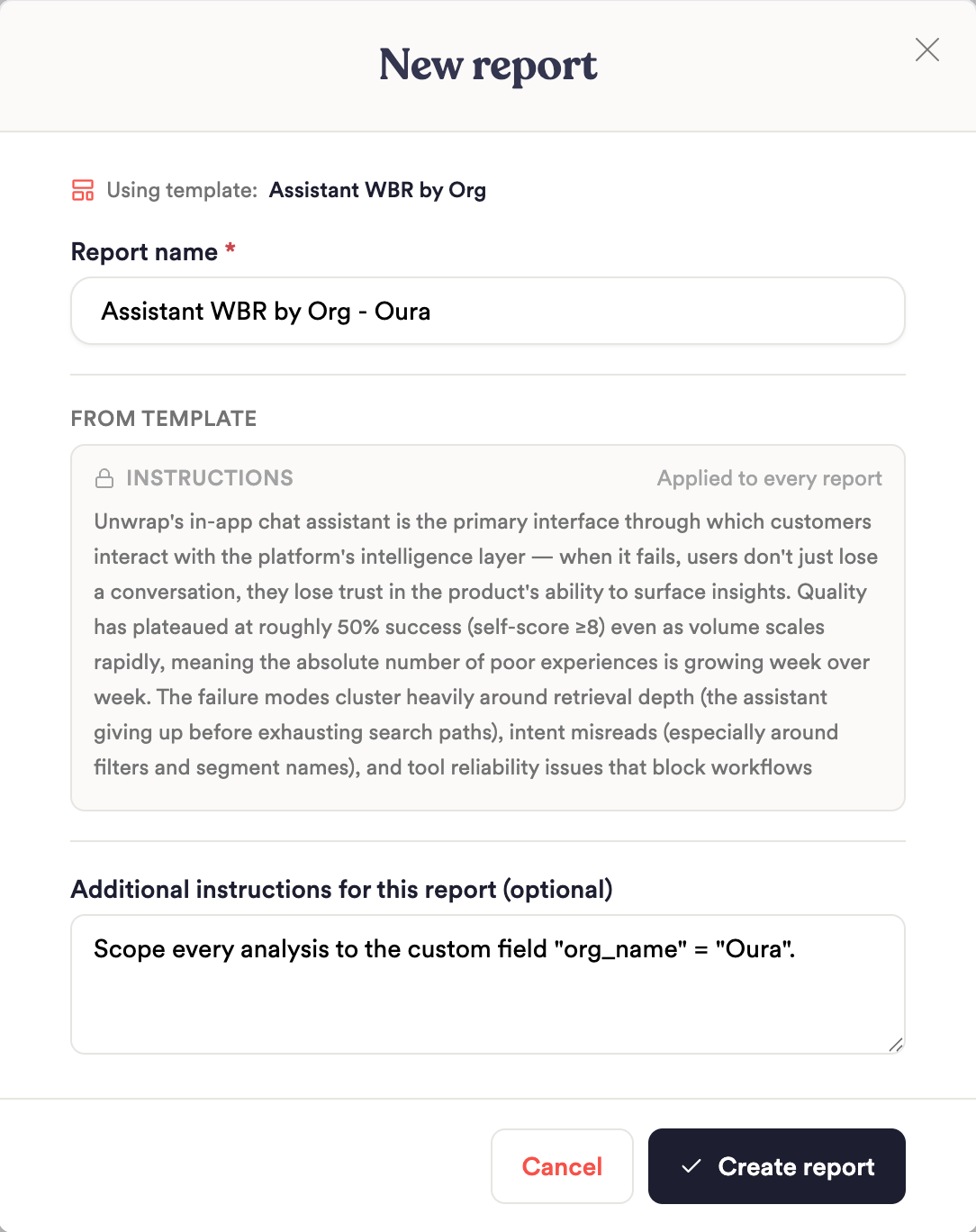
On the template's Chat tab, click Generate to produce a report right away.
Give the report a name.
The template's Instructions are shown (read-only—they apply to every report).
Optionally add Additional instructions for this report for one-off tweaks (e.g. "Focus on the EU region and compare against last quarter").
Click Create report.
The Assistant builds the report using the template's instructions plus anything extra you added.
Option 2 — Chat first, then generate
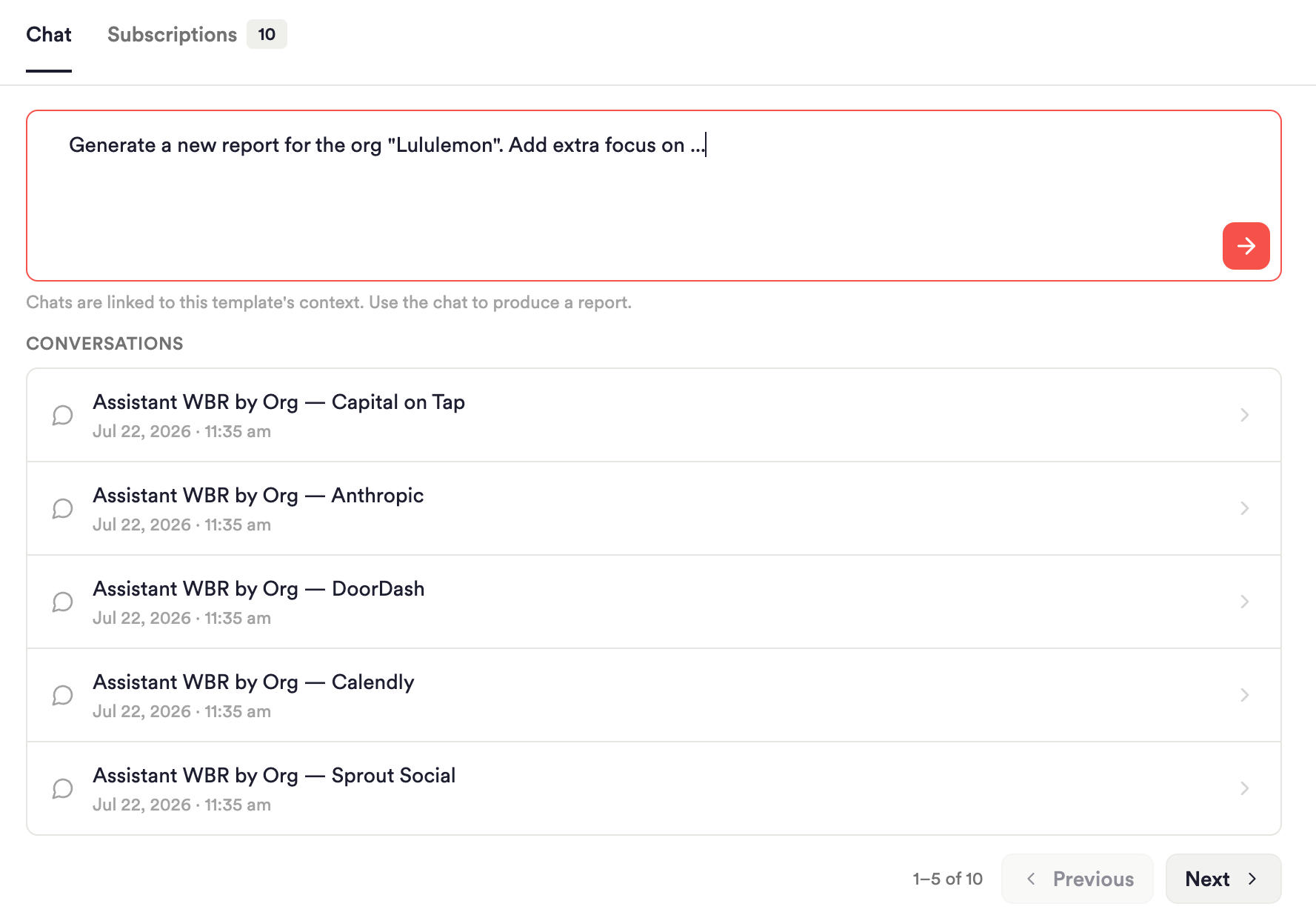
If you want to customize your request further, use the Chat tab to add any additional context before generating—ask questions, explore the data, and shape the analysis conversationally. The template's instructions are applied throughout, and the Assistant produces the report when you're ready.
Why two paths? Generate is for when the template already captures what you need and you just want the output. Chat is for when this particular report needs a little exploration or a custom angle first.
Creating subscriptions from a template
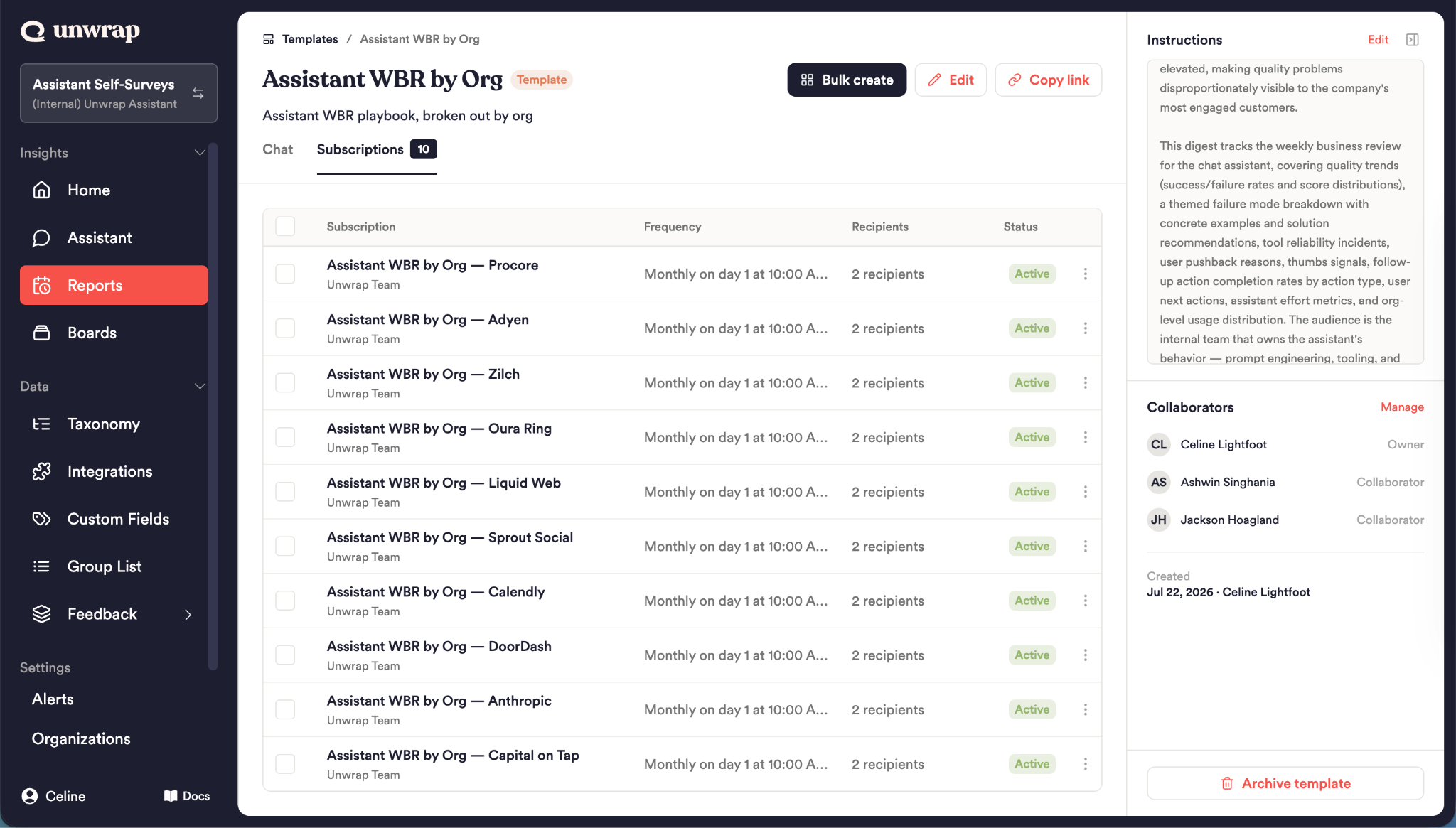
Because a template feeds report generation, you can turn its output into a recurring subscription. Generate a report from the template, then subscribe to updates from that report—the subscription stays linked to the template, so it inherits the template's instructions on every edition and shows up under the template's Subscriptions tab.
Bulk Create: one template, many subscriptions
The most powerful use of a template is Bulk Create—fanning a single template out into many report subscriptions at once, broken down by a custom field. Each generated subscription is automatically scoped to one value of that field.
Example: One "Weekly Product Feedback" template → bulk create by the Product custom field → a separate weekly subscription for every product, each analyzing only that product's feedback, each delivered to that product's team.
How Bulk Create works
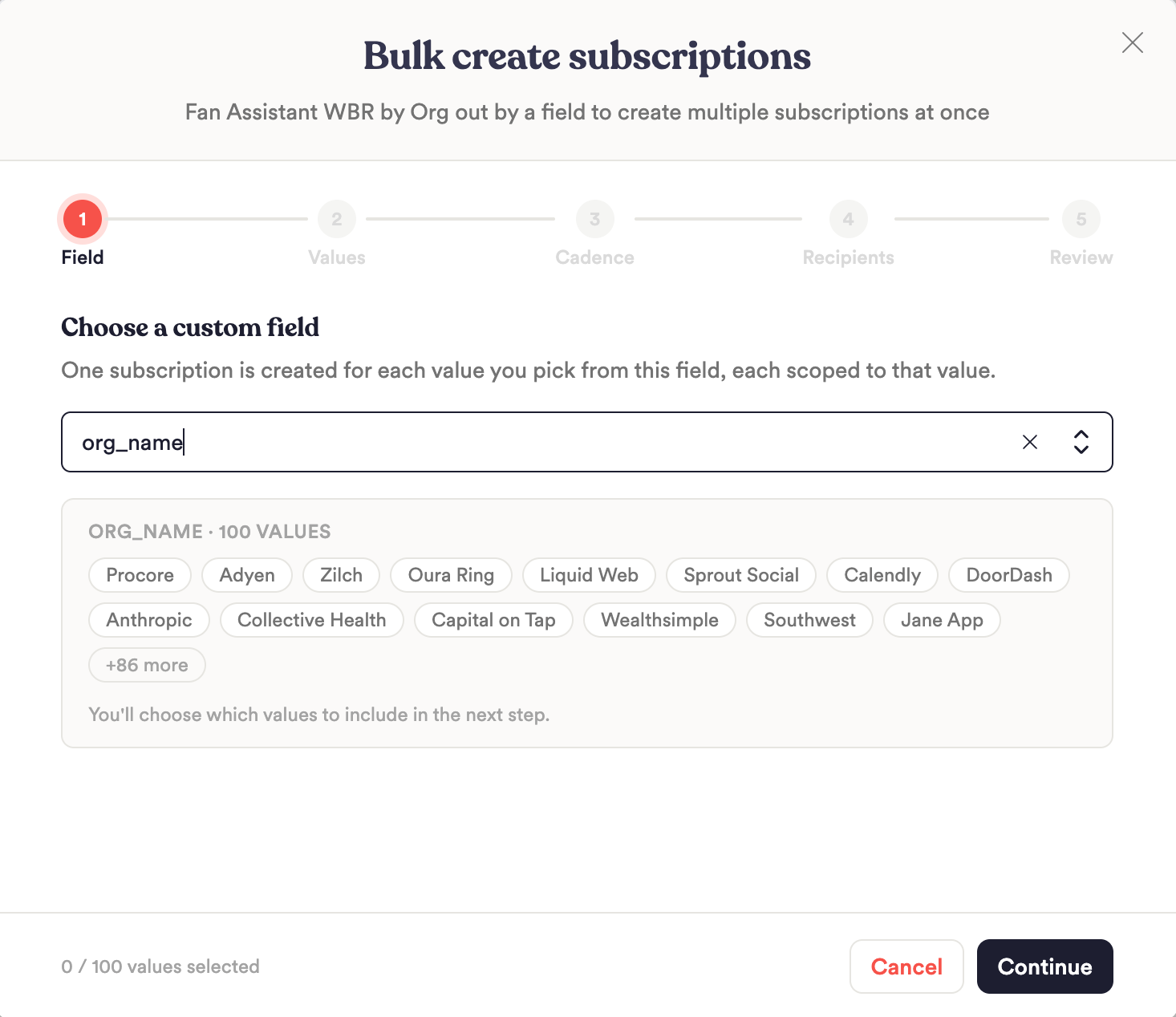
From a template, click Bulk create and step through the wizard:
Field — Pick the custom field to break the reports down by.
Values — Select the values you want a subscription for (up to 100).
Cadence — Choose the schedule for all of the subscriptions (e.g. weekly, monthly).
Recipients — Send them all to the same recipients, or set per-value recipients so each product/region/customer's report goes to the right people (email and/or Slack).
Review — Confirm, with the option to send the first edition immediately.
Unwrap then generates a baseline report for each value and creates the subscriptions. You can watch progress and jump to the Subscriptions tab when they're ready.
Why this is valuable: Instead of hand-building 40 nearly identical subscriptions, you define the reporting standard once and let Unwrap produce a tailored, correctly-scoped report for every product, region, or customer—each landing in the right inbox or Slack channel. It turns "reporting on feedback" from a recurring chore into org-wide, self-updating distribution.
Roles and permissions
Creators, collaborators, and org team admins can edit a template's instructions and run Bulk Create.
Add collaborators to a template so your team can share and maintain a common reporting standard.
Best practices
Invest in the instructions. The clearer the template instructions, the more consistent every downstream report and subscription.
Use Additional instructions for one-offs. Keep the template general; add per-report specifics at generate time.
Bulk-create along the dimension your org cares about. Product, region, customer segment, or team—whatever custom field maps to who needs the insight.
Set per-value recipients for accountability. Route each slice's report to the people who own it.
Related Articles
Reports — Create, send, and subscribe to reports from any Assistant conversation
Unwrap Assistant — Ask questions, follow up, and share conversations