Reports
Last updated: July 24, 2026
Reports turn an Unwrap Assistant conversation into a polished, shareable document—narrative and charts grounded in your feedback data. Instead of manually rebuilding the same analysis every week and pasting screenshots into a deck, you can generate a report once, send it, download it as a PDF, or subscribe to have a fresh version delivered on a schedule.
This page covers Reports (created from any Assistant conversation) and Report Subscriptions (recurring, scheduled deliveries of a report). If your organization has Report Templates enabled, see the related article at the bottom.
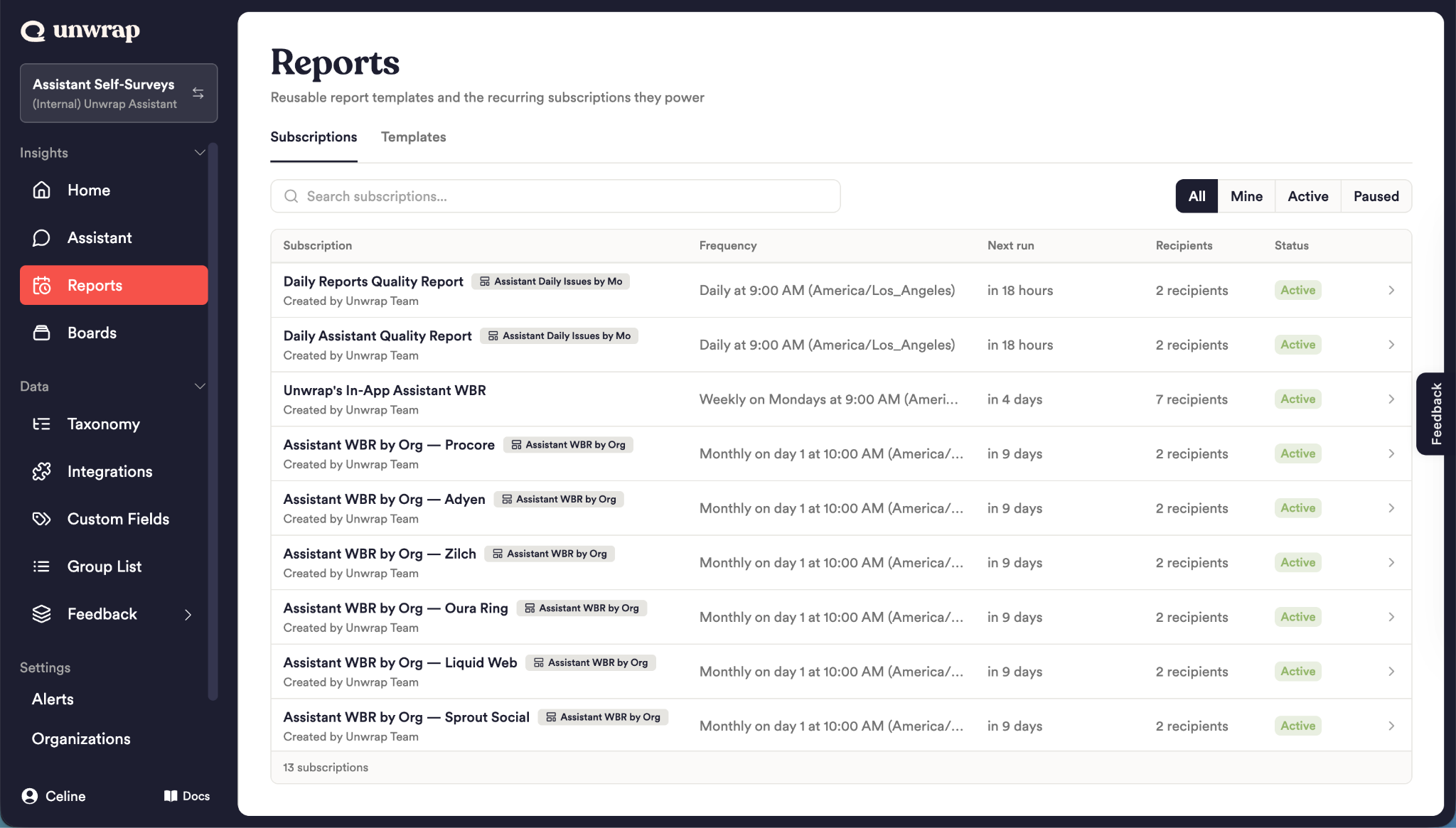
Why Reports matter
Your team already surfaces insights in the Assistant—the hard part is turning those insights into something the rest of the organization will actually read and act on. Reports close that gap:
Share insight, not raw data. A report is a narrative your stakeholders can skim, with the supporting charts attached and links back to the live data in Unwrap.
Stop rebuilding the same analysis. Ask the question once; reuse it as a one-time send, a recurring subscription, or a PDF.
Keep everyone grounded in the same source of truth. Every chart links back to Unwrap, and recipients can open the report in the Assistant to ask their own follow-up questions.
What is a Report?
A report is generated from an Assistant conversation and includes:
A title
Text sections with your analysis, written in plain language
Charts pulled from the conversation, each linking back to the live chart in Unwrap
Once a report exists in a conversation, you can View it, Send it once, Download it as a PDF, or Subscribe to recurring updates.
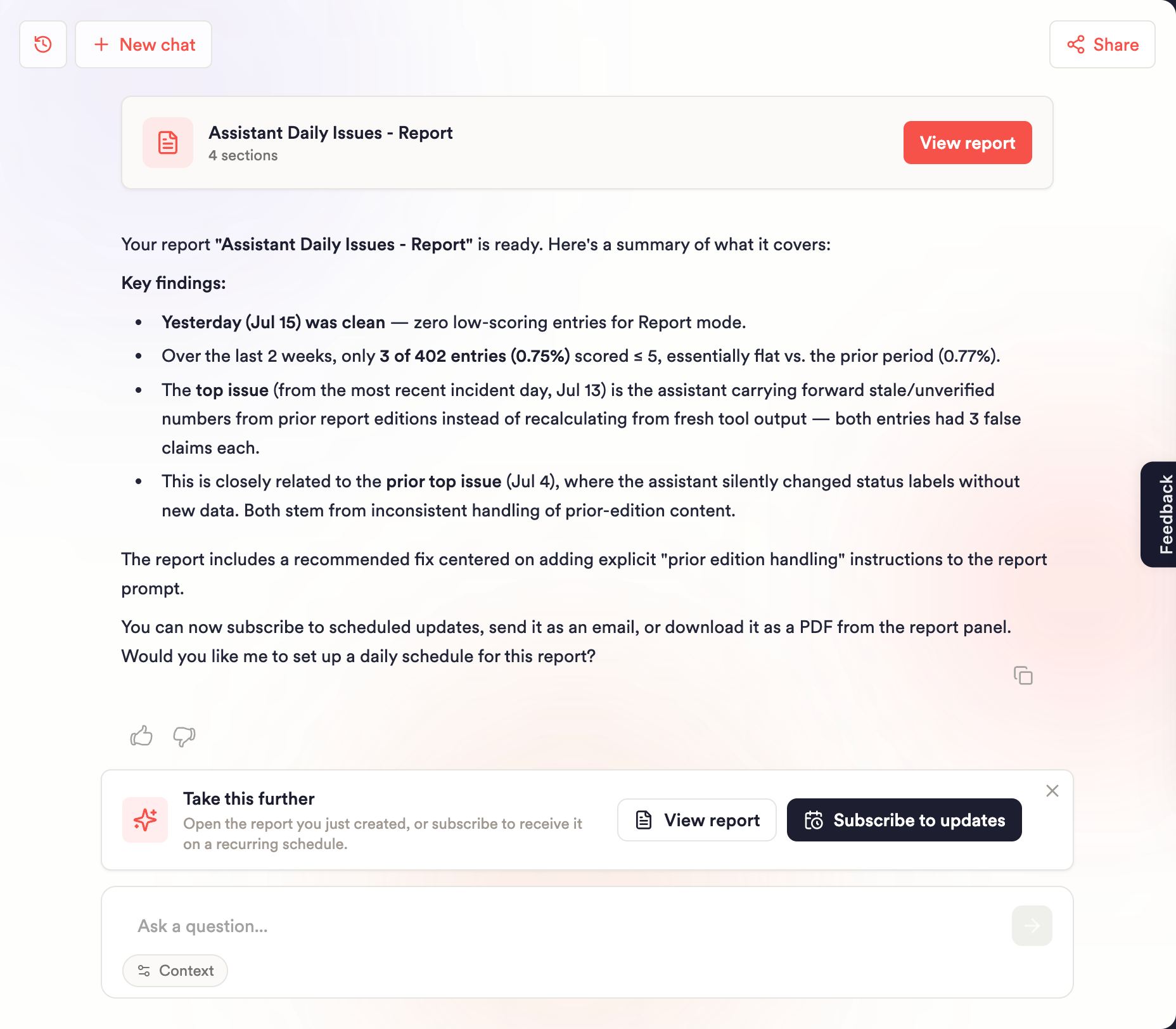
Creating a Report
You can create a report from any Assistant conversation.
Open the Assistant and ask the question you want to report on. Refine with follow-ups until the analysis reflects what you want to share.
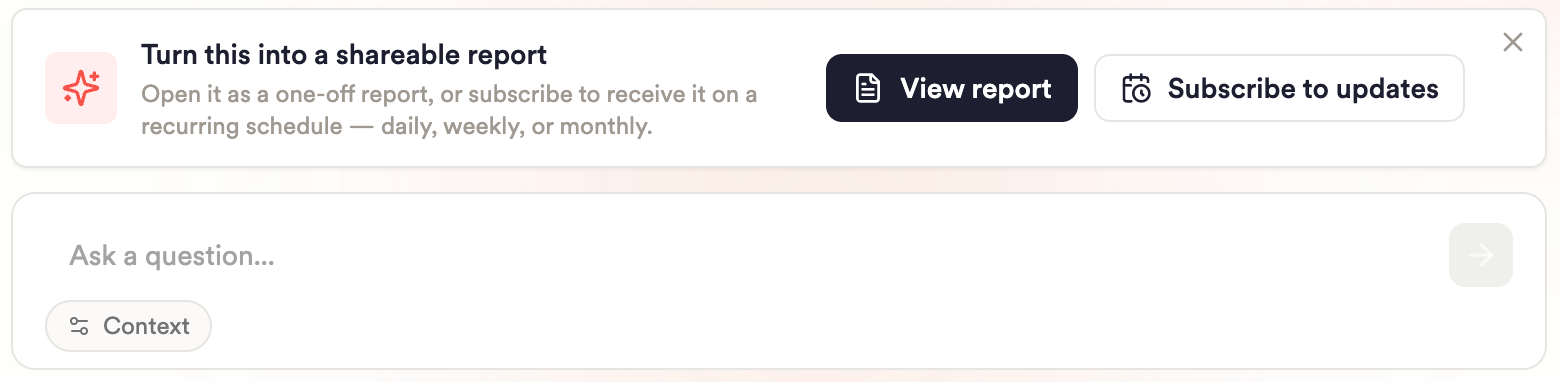
Ask the Assistant to turn it into a report (or use the prompt card that appears above the message box once the Assistant has responded).
The Assistant assembles a report from the analysis and charts in your conversation and opens it in the report panel.
From here you can View, Send, Download as PDF, or Subscribe to updates.
Tip: Nail the analysis in the conversation first. The stronger the conversation, the better the first report—and every scheduled edition that follows.
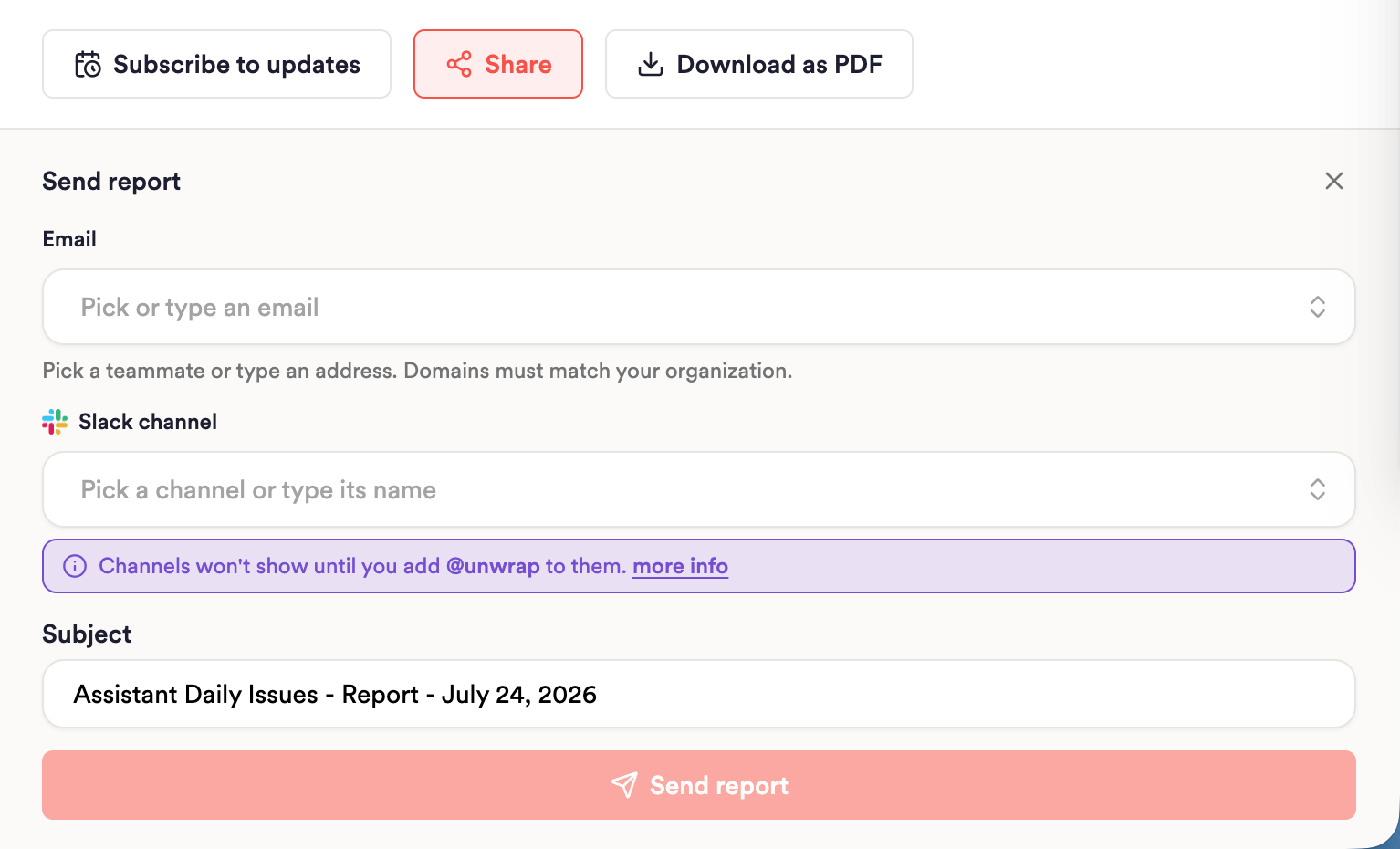
Sharing a Report
Send once
Use Share for a single delivery—for example, before a review or to include someone who wasn't in the thread.
Open the report (View report).
Click Share.
Add email recipients (teammates or addresses in your organization's allowed domains).
Optionally add a Slack channel.
Send.
This does not create a recurring schedule—you can send again manually anytime.
Download as PDF
Open the report, wait for charts to finish loading, then click Download as PDF. The PDF uses the same styled layout as email deliveries—useful for decks, archives, or offline sharing.
Report Subscriptions
A Report Subscription delivers a report to your inbox or Slack on a recurring schedule. Each scheduled delivery regenerates the report from the conversation context, so recipients get an updated story reflecting the latest data—not a static copy of the first version.
Each delivery is called an edition. Editions are collected on the subscription's detail page so you can see the history of what went out over time.
Why subscribe instead of sending manually?
Match your team's rituals. Weekly for a team sync, monthly for a leadership readout—the report shows up on cadence without anyone remembering to run it.
Always current. Because each edition regenerates, follow-up editions can highlight what changed (increased, decreased, resolved, new) since the last send.
Recipients self-serve. Teammates can subscribe or unsubscribe themselves without you editing the recipient list.
Setting up a subscription
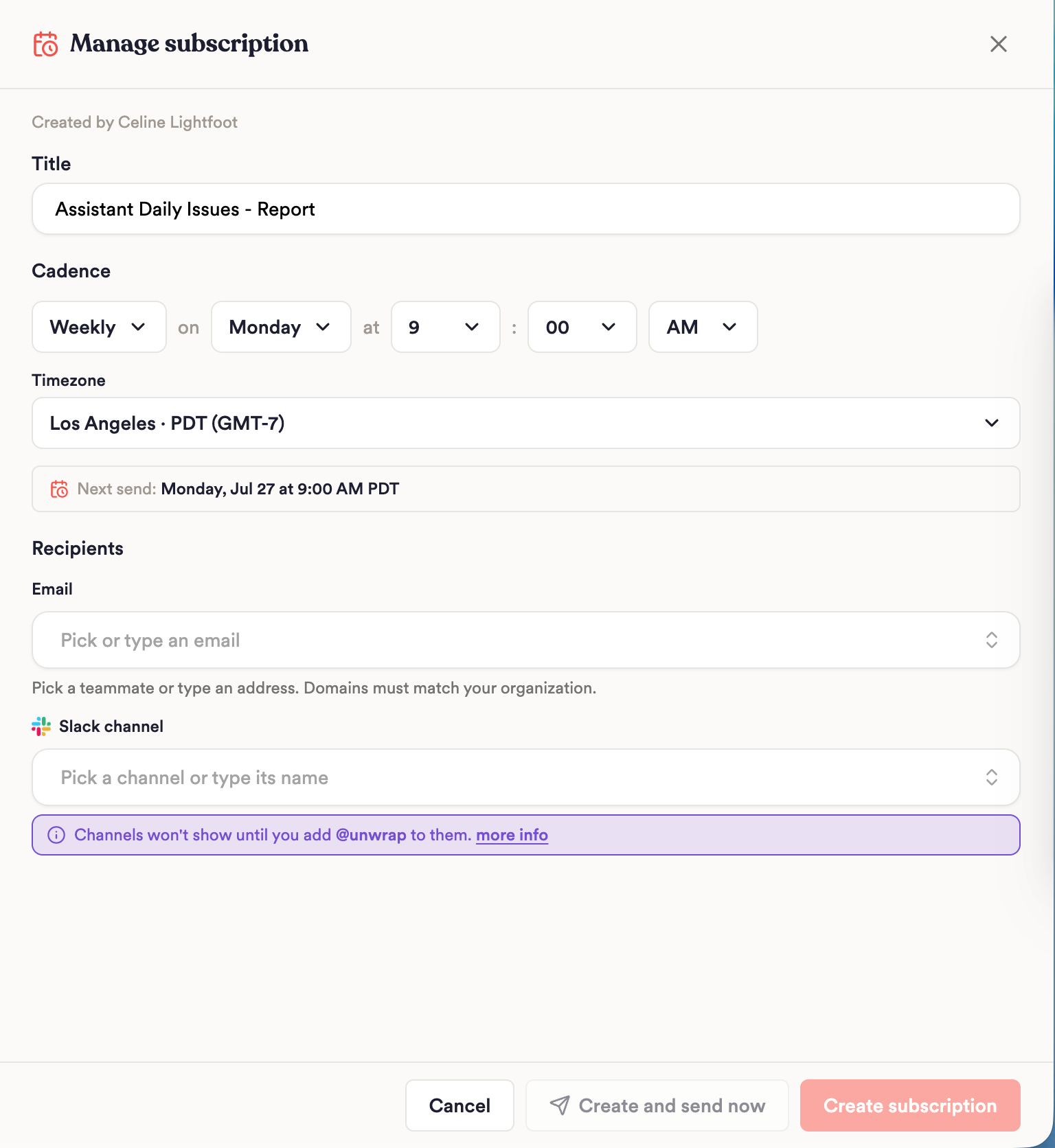
From a report, click Subscribe to updates.
Set a title (used in delivery subject lines).
Choose a cadence: Daily, Weekly (pick a day), Every other week, Monthly (day of week, e.g. first Monday), or Monthly (day of month, e.g. the 15th).
Set the send time and timezone. A next send preview shows when the first automated run will go out.
Add email recipients and/or a Slack channel (if Slack is connected). At least one is required.
Click Create subscription, or Create and send now to deliver the current report immediately and schedule future runs.
Cadence options
Daily
Weekly (select day of week)
Every other week
Monthly (day of week) — e.g. the first Monday of the month
Monthly (day of month) — e.g. the 15th
The Report Subscription detail page
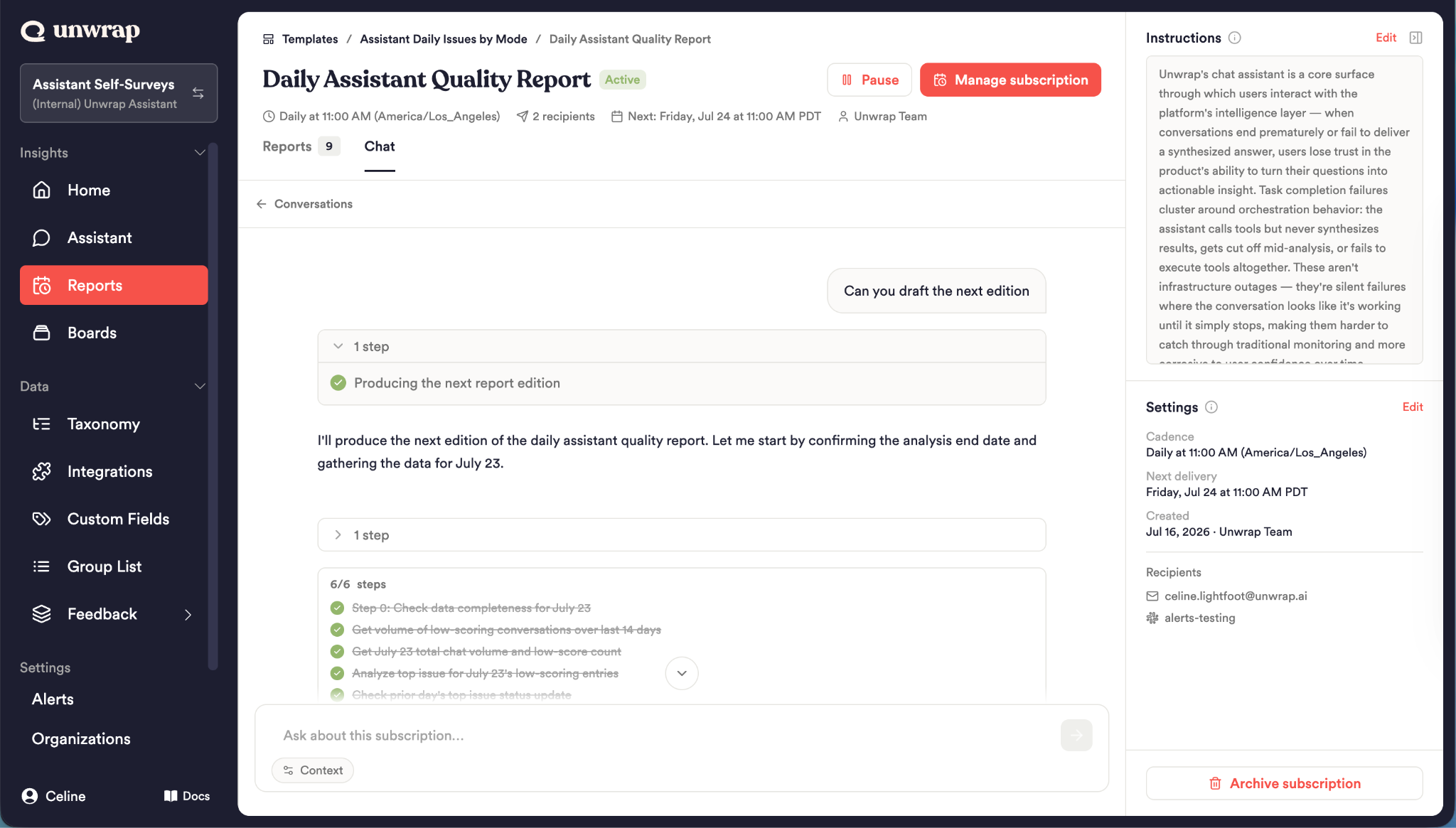
Open a subscription from the Reports tab to manage it. The detail page has two tabs:
Reports — the archive of every edition, plus any staged drafts (visible to creators and admins).
Chat — an Assistant scoped to this subscription and all of its editions.
Using the Assistant chat on a subscription
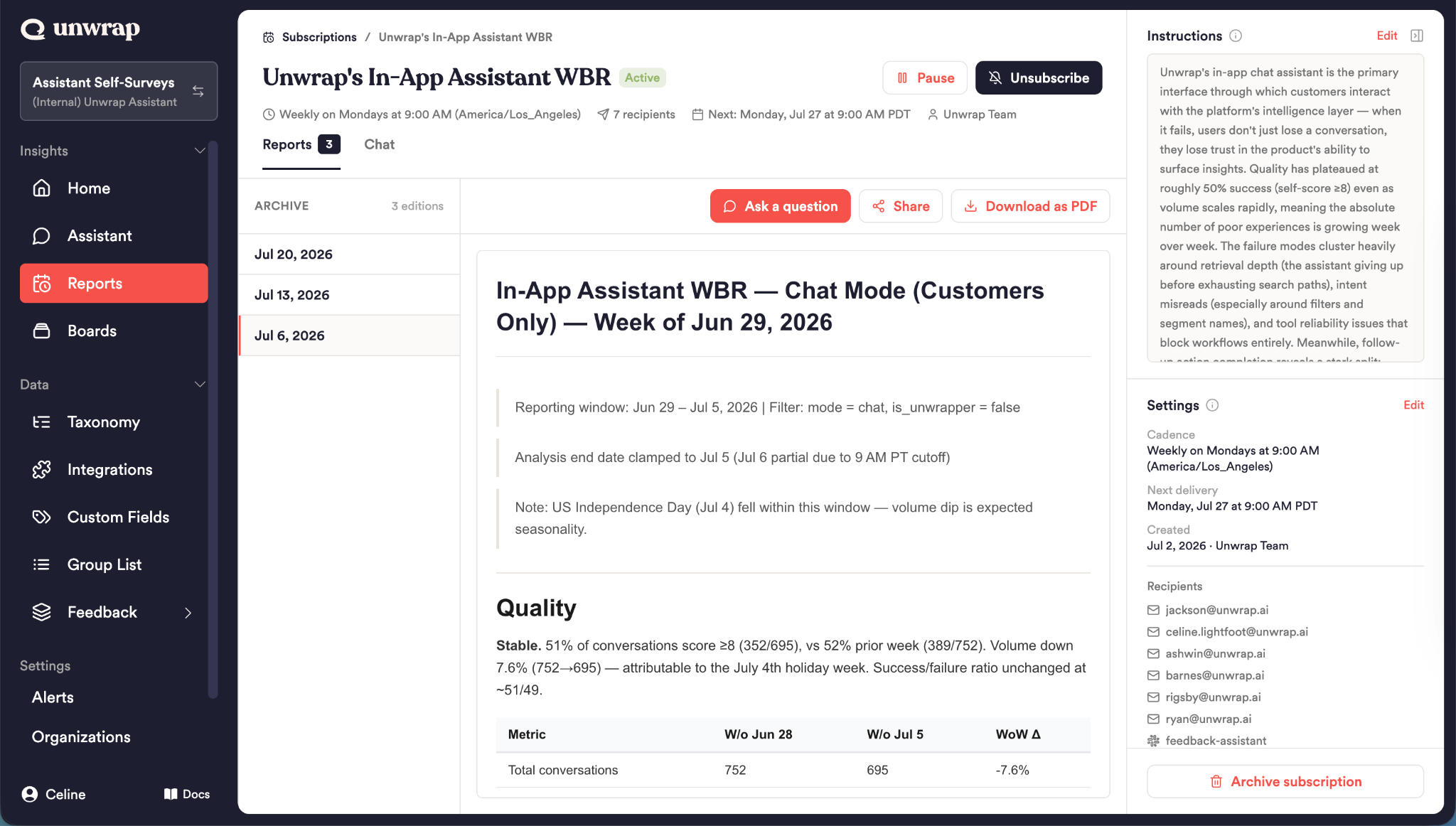
The Chat tab is scoped to the entire subscription—not just a single conversation—which unlocks a few things you can't do from a normal chat:
Ask about any edition in the series. "What were the top complaints in last week's edition?" The Assistant can pull up any past edition on demand.
Compare across multiple editions at once. "How has checkout friction trended across the last three editions?"
Draft the next scheduled edition. Ask the Assistant to generate the next edition early. It builds a fresh, delta-aware report for the upcoming window so you can review it before it's due.
Edit the draft conversationally. Refine wording, add or drop sections, or adjust focus by chatting.
Stage it as the next edition. Once you're happy, ask the Assistant to stage the report as the next scheduled edition. At send time, Unwrap delivers your approved draft instead of regenerating from scratch.
Provide feedback on the subscription instructions. Polish the report until it looks right, then ask the Assistant to save your changes into the subscription instructions—so future editions follow the structure you settled on.
When you stage a draft, it appears in the archive with a Draft badge, and creators and org admins can review it in the report archive before it goes out.
Why this is valuable: You get editorial control over an automated report. The subscription still does the heavy lifting—analyzing the latest feedback—but you can review, tweak, and approve the exact narrative your stakeholders will receive.

Report Subscription Instructions
Every subscription carries a set of Instructions—standing guidance for what each edition should focus on, what to include or exclude, and any formatting preferences. These instructions are applied every time an edition is generated, which is what keeps a recurring report consistent and on-message run after run.
Instructions are created automatically when you first schedule a report (synthesized from your originating conversation), and they are now visible and editable on the subscription detail page.
How instructions shape each edition
On every scheduled run, Unwrap regenerates the report using the subscription's instructions as authoritative guidance—so if you told it to "focus on shipping issues in the EU and skip verbatims about pricing," every future edition honors that.
Updating instructions
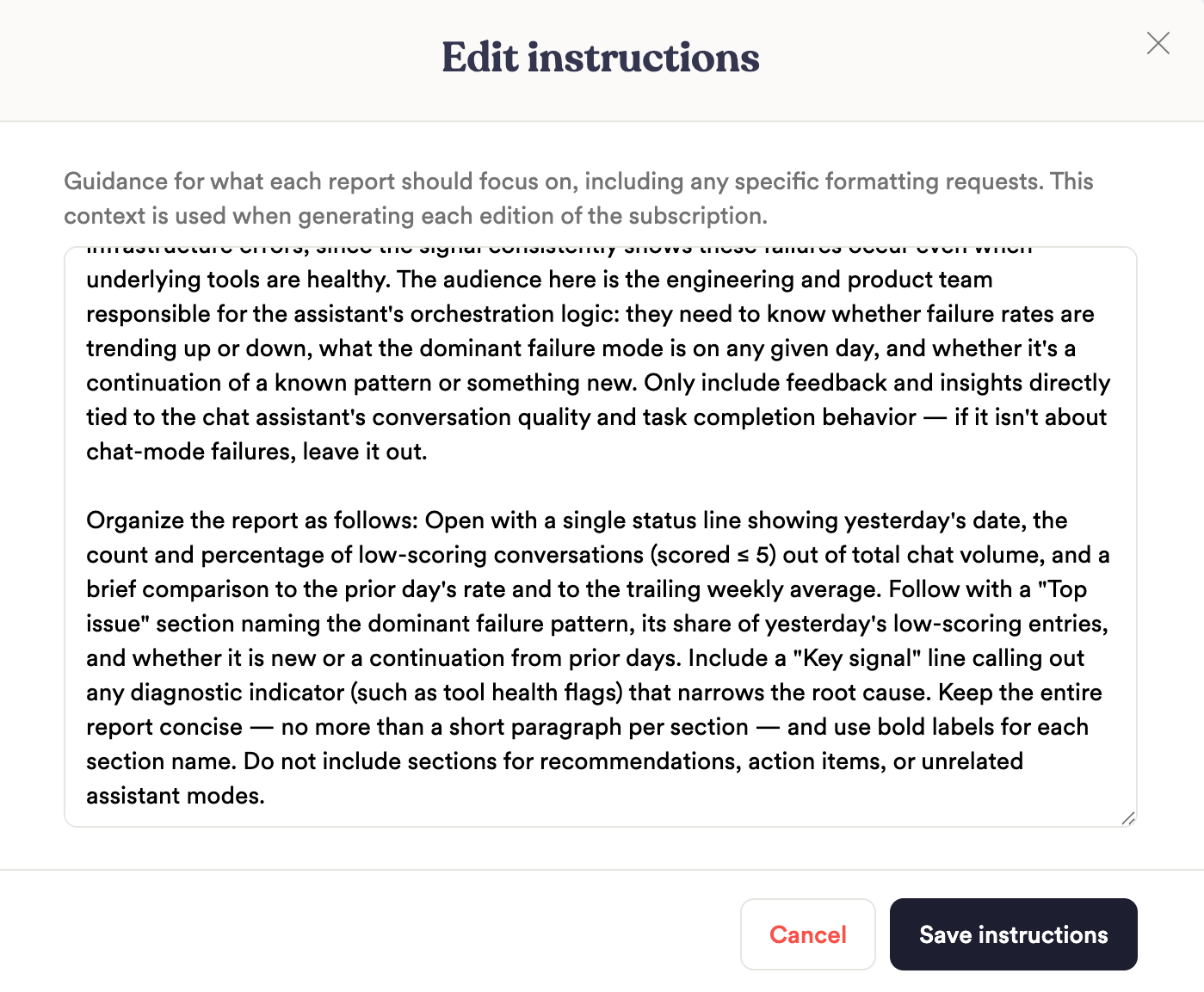
There are two ways to change what future editions look like:
1. Edit directly (inline). On the detail page, open the Instructions panel and click Edit to update the guidance yourself. Creators and org admins can edit; changes apply to the next edition.
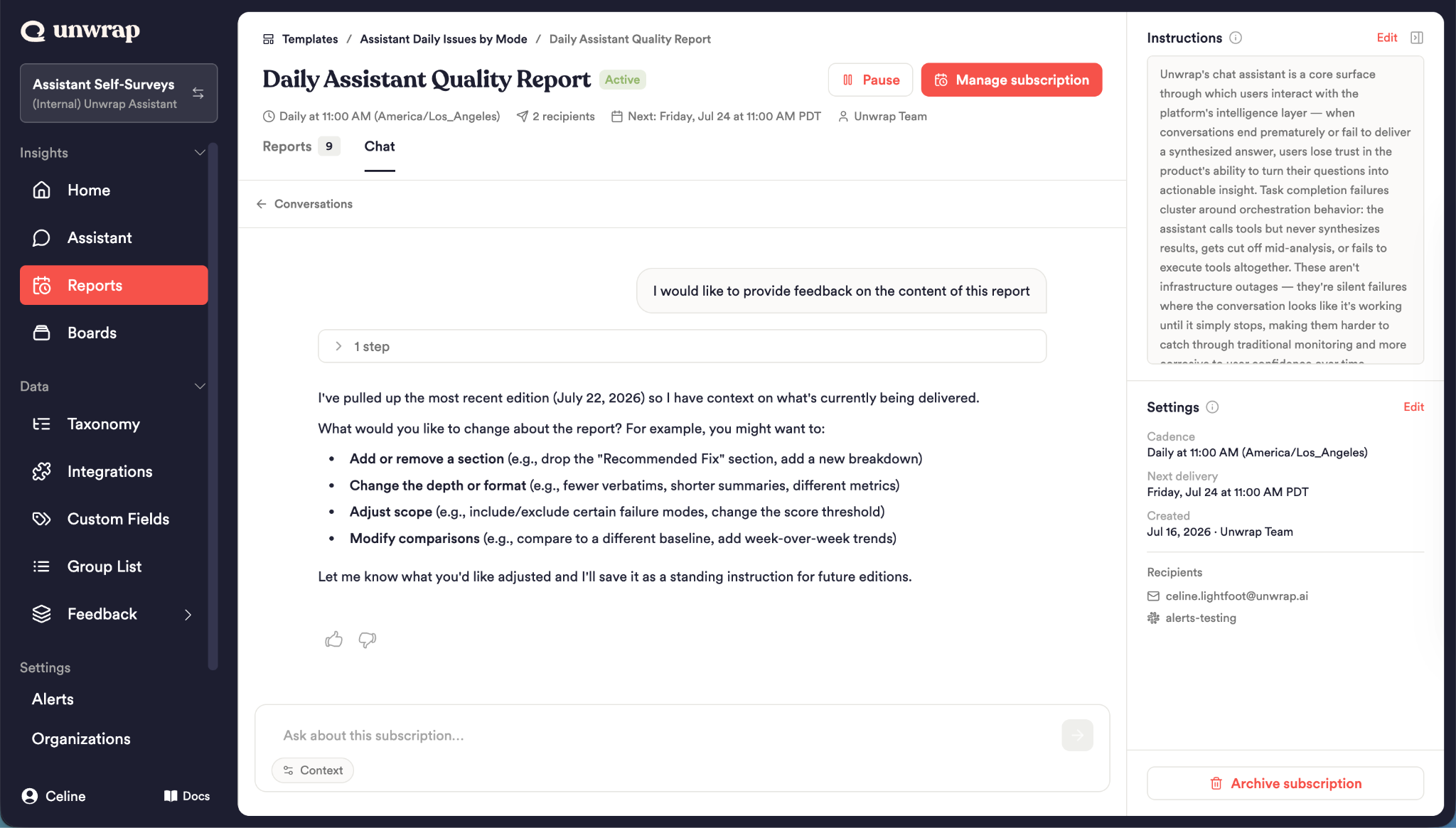
2. Ask the Assistant (feedback flow). In the subscription chat—or via the Provide feedback button on any delivered report—tell the Assistant:
"I would like to provide feedback on the content of this report."
Then describe what you want to change ("stop including verbatims about pricing," "add a section on onboarding friction"). The Assistant folds your feedback into the instructions automatically, so you never have to hand-edit the guidance. The latest feedback takes precedence, so the report evolves as your needs do.
Roles and self-service
Your role | What you can do |
Teammate | Subscribe or unsubscribe yourself (email only—does not stop the report for others) |
Creator or Admin | Edit the schedule, recipients, and instructions; stage drafts; archive or pause |
Manage your own email delivery from the Reports page in the main navigation. Only the creator or a team admin can archive a subscription to stop delivery for everyone.
What recipients receive
The report title and formatted body (text and chart images)
Links to view charts in Unwrap
A Go deeper / Open in Unwrap link to open the report in the Assistant and ask follow-up questions
A Provide feedback action to refine future editions
Slack recipients see the report in the configured channel. Email recipients must be on the subscription list or have subscribed themselves.
Best practices
Start broad in the Assistant, then subscribe. Get the analysis right in conversation before locking a schedule.
Use clear titles. Recipients scan subject lines—include the topic or time period (e.g. "Weekly checkout friction").
Match cadence to your ritual. Daily for quick updates, weekly for syncs, monthly for leadership.
Refine with feedback, not rebuilds. Use the chat feedback flow to steer future editions instead of recreating the subscription.
Review drafts before big sends. Stage and review the next edition when the stakes are high.
FAQ
Does each scheduled send repeat the exact same report? No. Each run regenerates from the conversation context and the subscription's instructions, so content reflects newer data and analysis.
Can I edit a report before it goes out? Yes. In the subscription chat, ask the Assistant to draft the next edition, refine it, and stage it. Creators and admins can review the staged draft in the archive before it sends.
How do I change what a recurring report focuses on? Edit the Instructions directly on the detail page, or tell the Assistant "I would like to provide feedback on the content of this report."
Can I send to both email and Slack? Yes. Add both when creating or editing a subscription.
I unsubscribed—did I cancel it for everyone? No. Unsubscribing only removes your own email. Only the creator or a team admin can archive to stop delivery for the whole team.
Related Articles
Unwrap Assistant — Ask questions, follow up, and share conversations
Report Templates — Define a report once and reuse it across products, customers, or time periods