Assistant Context
Last updated: May 13, 2026
Give your Unwrap Assistant a persistent understanding of your product, team, and data — so every conversation starts smarter.
Overview
Context consists of freeform text fields that gives the Unwrap Assistant a persistent foundation of knowledge about your product and team. Whenever a user starts a new Assistant conversation — whether that's asking a question, building a group, or generating a board — the Assistant reads the context first and uses it to inform everything it produces.
Unwrap supports two types of context:
Personal Context — Private context configured by each individual user for themselves within a view.
View Context — Shared context configured by view admins for everyone in the view.
Without context, the Assistant works from your feedback data alone. With context, it understands the vocabulary, priorities, and nuances that make your team's analysis meaningful.
View Context is shared across the entire view. While only Admins can edit View Context, all users in the view can view it. Changes apply to the entire view, so all users in that view will be affected.
Personal Context is private to each user. Only the user who created it can view or edit their Personal Context, and it only affects their own Assistant conversations.
Notes:
Context currently only informs the Assistant. It does not affect any other Unwrap features such as the Taxonomy, Feedback Page, Dashboards, or Alerts.
Context applies per-view only. Today, there is no organization-wide context that applies across all views.
Personal Context is also scoped per-view. A user's Personal Context in one view does not apply to other views.
How it works
Context is stored at the View level, meaning each view in your Unwrap organization can have its own distinct View Context and Personal Context.
When a user opens a new Assistant conversation, the Assistant automatically reads both types of context before responding:
The shared View Context for the view.
The user's Personal Context for that same view.
No extra steps are required.
Updates to context take effect immediately for any new conversations started after saving, but do not affect conversations that are already in progress or were started before the update.
Getting started
Editing Context
Navigate to any Assistant page in your view.
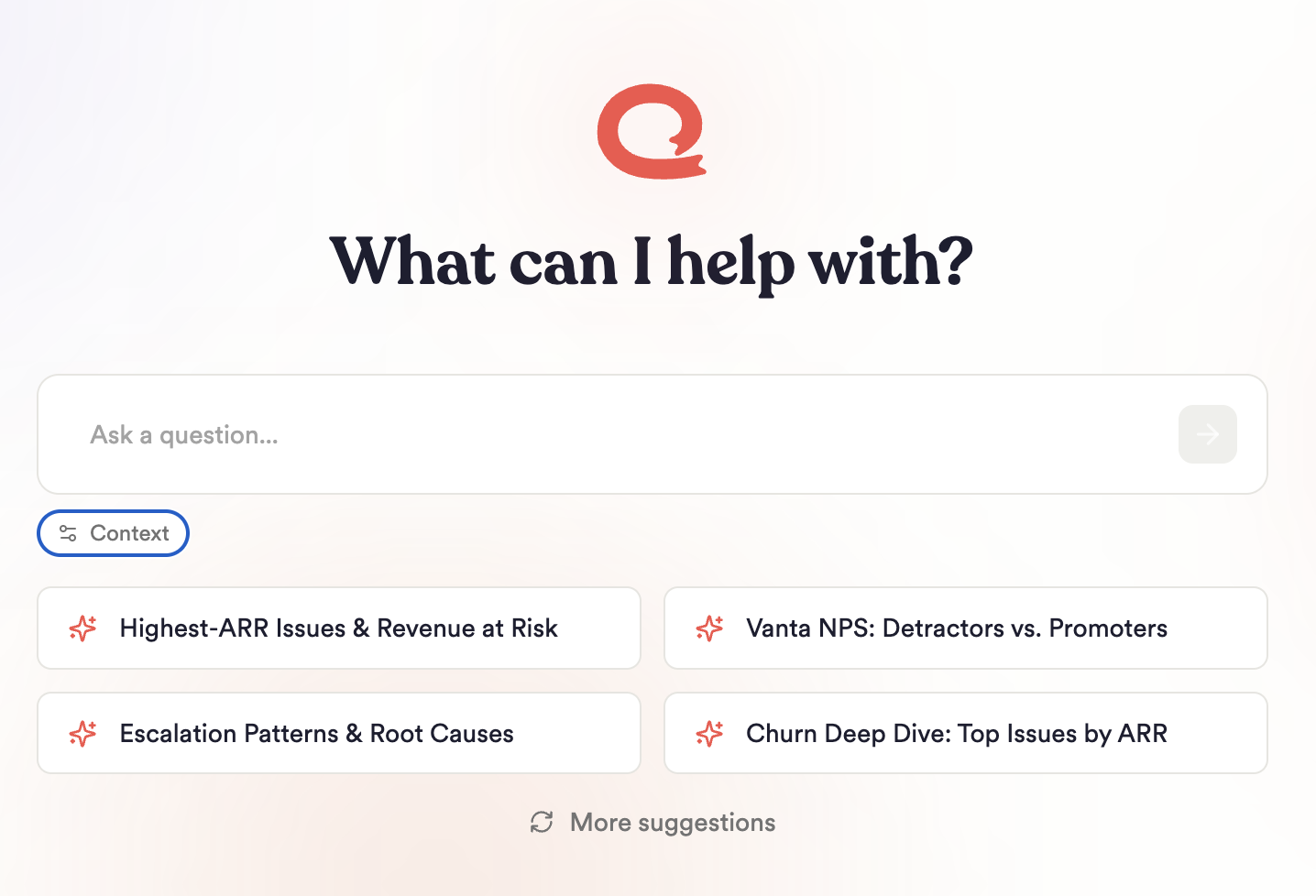
Click the Context chip below the Assistant search bar.
The context modal contains two sections:
Personal Context — Your private context, visible and editable only by you.
View Context — Shared context for the entire view. Only view admins can edit this section.
Edit the context field with the information you want the Assistant to use. See Best Practices below for guidance on what to include.
Note: Each context field has a 25,000 character limit.
Click Save. The updated context will apply to all new conversations started after saving.
Viewing Context
Navigate to any Assistant page in your view (General Assistant, Group Build, or Boards).
Locate the Context chip below the Assistant search bar. It is labeled "Context."
Click the chip to open the context modal.
The modal contains two vertically stacked sections:
Personal Context — Your private context, visible only to you.
View Context — Shared context for the entire view, visible to all users in the view.
Where context is applied
Once saved, both View Context and Personal Context inform the following Assistant applications:
General Assistant — Uses your vocabulary, definitions, and reporting preferences when answering questions and naming things.
Group Build — Follows your guidance to determine which themes are related and what belongs in a group.
Boards — Tunes chart titles, axis labels, and content to match your view's preferences.
Best Practices
Ground the Assistant in your product's language. Include the names of your product features, how customers refer to them, and any shorthand or internal terminology your team uses. This prevents the Assistant from misidentifying or mislabeling concepts.
Describe your data sources and custom fields. Let the Assistant know what feedback sources are ingested into this view and what your custom fields represent. For example: "The 'Tier' field refers to customer subscription level: Free, Pro, or Enterprise."
Clarify distinctions between similar concepts. If two features or terms are commonly confused — by customers or by the Assistant — spell out the difference explicitly. For example: "'Reports' and 'Dashboards' are different products. Reports are exported PDFs; Dashboards are live in-app views."
Correct past Assistant mistakes directly. If the Assistant has misclassified feedback, used the wrong terminology, or produced unhelpful groupings, add a note in the context describing the correct behavior. This is the most targeted way to improve Assistant quality over time.
Keep it focused and scannable. The context is not a product wiki — it's a briefing note. Prioritize the information most likely to affect how the Assistant interprets and responds to your feedback data.
Use Personal Context for individual preferences and workflows or to experiment before sharing with the rest of the view. For example, you can store preferred naming conventions, reporting preferences, recurring instructions, or personal shorthand that should only apply to your own conversations.
FAQs
Q: I updated the context, but the Assistant still seems to be ignoring it. Why?
A: Context only applies to conversations started after the update was saved. If you're in an ongoing conversation, start a new one and the updated context will be in effect.
Q: Can I have different context for different teams in my organization?
A: Yes — context is set at the view level. If your organization uses separate views for different teams or product lines, each view can have its own tailored View Context and Personal Context.
Q: Who can see what's in our context?
A: All users in the view can read the View Context by clicking the Context chip. Only admins can edit it.
Personal Context is private. Only the user who created it can view or edit it.
Q: Is there a way to disable context for a specific conversation?
A: Not currently. The Assistant reads both View Context and Personal Context at the start of every new conversation in the view. If you need to test behavior without context, you can temporarily clear the relevant context field and save, then restore it afterward.
Q: What's the best way to improve Assistant quality over time?
A: Use context as a living document. When you notice the Assistant making a consistent mistake — wrong terminology, poor groupings, misattributed feedback — add a correction directly to the relevant context. Over time, this creates a highly tuned Assistant that reflects how your team actually thinks about your product.