Unwrap Assistant
Last updated: May 26, 2026
The Unwrap Assistant is an AI-powered chat interface that lets you ask any question about your customer feedback in plain language — and get back rich, actionable answers in seconds.
Overview
The Unwrap Assistant has been rebuilt from the ground up, powered by Claude and a suite of advanced analytical tools. Where the previous Assistant relied primarily on your taxonomy to answer questions, the upgraded Assistant goes further — performing on-the-fly calculations, diving into raw feedback transcripts, and surfacing insights even where structured Groups don't yet exist.
Whether you're trying to understand what's driving a spike in complaints, brainstorm product solutions, evaluate how support is performing, or just figure out what to focus on this quarter, the Assistant gives you a starting point in seconds.
How It Works
When you ask the Assistant a question, it draws on your ingested feedback data — including your taxonomy, raw feedback transcripts, and structured metadata — to generate a response. Unlike a simple search, the Assistant reasons across your data: it can calculate trends, surface verbatim evidence, identify root causes, and structure its output however you need it. Each conversation is back-and-forth, so you can refine, follow up, and go deeper without starting over.
Where to Access the Assistant
The Assistant is available in multiple places across the Unwrap platform:
Assistant page — The dedicated home for the Assistant, always accessible from the main navigation.
Homepage — Ask questions directly from your Unwrap home page.
Group pages — Dig deeper into a specific Group without leaving the page.
Chart builder — Use the Assistant to build the chart you need.
Getting Started
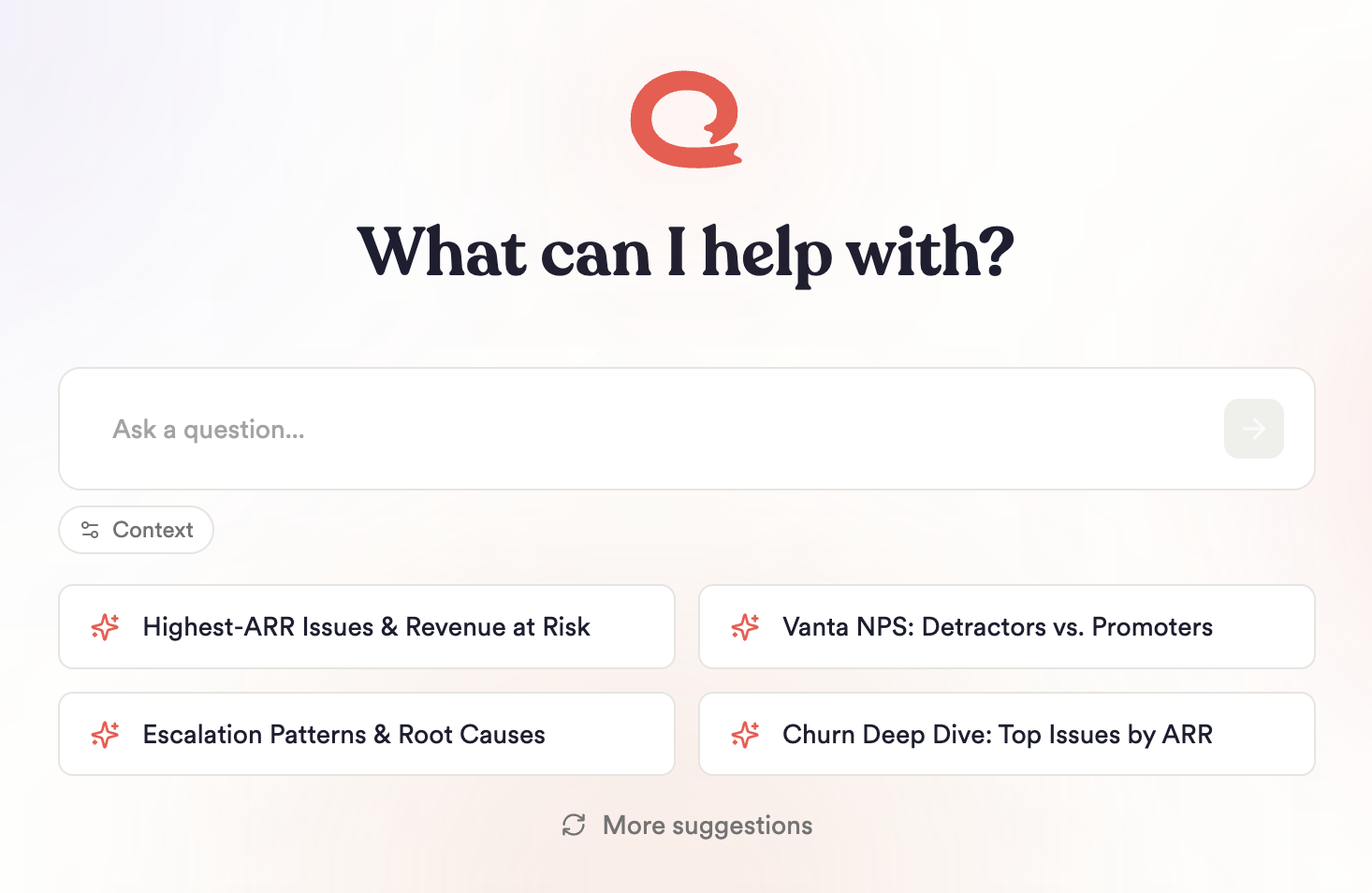
Navigate to the Assistant. You can access it from the Assistant page, the Homepage, a Group page, or while using the chart builder.
Type your question in the input field. Use natural language — questions can be as high-level or as specific as you need.
Review your results. The Assistant returns a response that may include charts, tables, descriptive overviews, summaries, and links to specific feedback examples — depending on what your question calls for.
Continue the conversation. Ask follow-up questions to go deeper, reframe the output, or explore a different angle. Each conversation is fully interactive.
Adjust the output format if needed. You can prompt the Assistant to restructure its response — for example, "Give me this as a bullet list" or "Show me three customer quotes for each finding."
Example Prompts
The Assistant handles a wide range of question types. Here are some to get you started:
Understand root causes
"What's driving [problem]? How big is it and what can we do?"
"Find the top root cause driving [problem] and help me prioritize solutions with verbatim evidence."
Ideate on solutions
"From feedback about [problem], what are three ideas to solve the problem at the root?"
"For each idea, give me three customer quotes as evidence."
Evaluate support effectiveness
"How is support handling [complaint type]? What works vs. what doesn't?"
"What feedback has changed since [change] launched on [date]?"
Get guided insights
"I own [feature area]. What should I be focusing on?"
"How can we improve NPS?"
Sharing Assistant Outputs
You can share any Assistant conversation with teammates directly from the chat.
To share via link:
Copy the conversation link from the Assistant.
Send it to anyone with access to your Unwrap organization.
Recipients can view the full chat history and start their own private follow-up conversation — their session is separate from yours and won't affect your original thread.
To share via emailed report:
Charts generated by the Assistant can be shared as an emailed report directly from the Assistant.
Current Limitations
Today, the Assistant cannot build new Boards directly. However, charts generated by the Assistant can be added to an existing Board.
Currently, the Assistant cannot create new Groups from the Assistant page. To create a Group using Assistant-generated insights, initiate Group creation from the Taxonomy page.
Best Practices
Start broad, then go deep. The Assistant handles open-ended questions well — start with a high-level question, then follow up with more specific ones to drill into what matters.
Ask for evidence. Prompt the Assistant to support its findings with verbatim customer quotes. This makes insights easier to act on and share with stakeholders.
Set context for more tailored responses. If you have a specific product area, team focus, or company background the Assistant should know about, add it via Context to sharpen every response.
Share early findings. Use the share link to get quick reactions from teammates before turning Assistant outputs into full reports or dashboards.
FAQ
Q: Can I access the Assistant via MCP? Yes! Unwrap supports MCP (Model Context Protocol), which allows you to connect the Assistant to external AI tools and workflows. See the Unwrap MCP documentation for setup instructions.
Q: Can I give the Assistant context about my company or team? Yes. You can add context — such as your product area, team focus, or relevant background — that the Assistant will reference in every response. Learn how in the Adding Context to Assistant article.
Q: Can I create a new Group from the Assistant? Not directly from the Assistant page. To create a new Group, start from the Taxonomy page. You can use Assistant-generated insights to inform what you build there.
Q: Can I add an Assistant-generated chart to a Dashboard or Board? Yes — charts produced by the Assistant can be added to any existing Board directly from the conversation.
Q: Will my shared conversation affect the original thread? No. When someone accesses a shared Assistant link, they can view your conversation and ask their own follow-up questions — but their session is completely private and separate from yours.
Related Articles
Adding Context to Assistant — Learn how to set persistent context so the Assistant gives you more relevant, tailored responses.
Unwrap MCP — Connect Unwrap to external AI tools and workflows using the Model Context Protocol.
How to Build or Edit a Group — Create and manage Groups in your taxonomy, including with the help of the Assistant.
How to Create or Schedule Reports - Create and schedule reports from your assistant conversation summaries.