Boards
Last updated: May 22, 2026
What are Boards?
The Boards page is where you can unleash your data storytelling powers. On the Boards page, you can curate a collection of charts that not only contextualize your data but also weave a compelling story around it. Whether you're tracking product performance, customer satisfaction scores, or patterns across a particular Feedback Group, Boards empower you to create a visual tapestry that brings your insights to life.
Use Boards to:
Organize related charts into a cohesive dashboard
Build a narrative around key data trends and patterns
Dive deeper into insights with detailed breakdowns to reveal underlying trends
Monitor key issues and events critical to your business
Share your data story with team members or stakeholders
Creating and Managing Boards
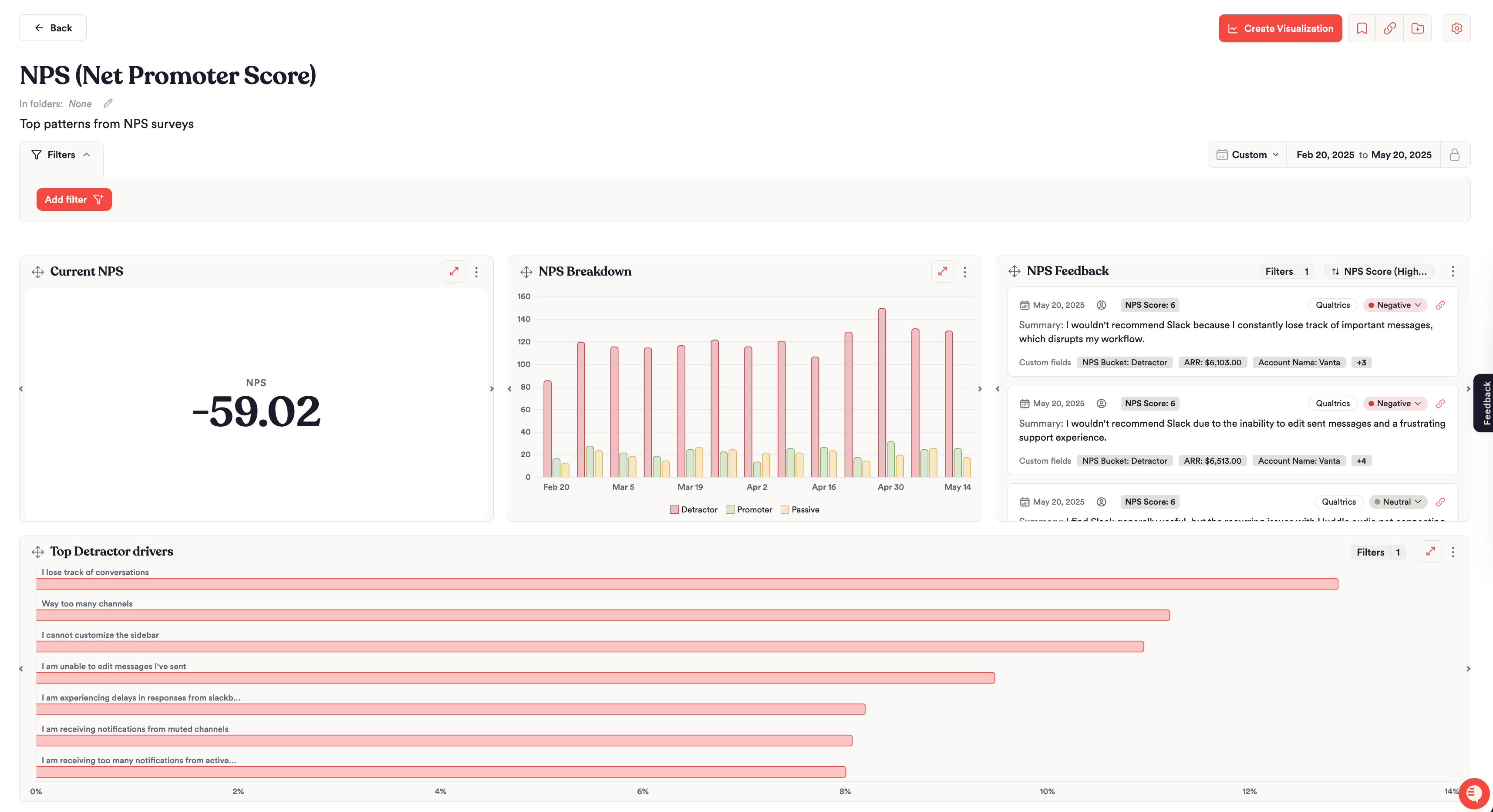
To create a new Board, navigate to the Boards page and click Create Board. New boards start as Drafts, visible only to you until you're ready to publish and share.
Board-Level Controls
Filters
Apply filters at the board level to scope all widgets to a specific subset of feedback. For example, filter the entire board to a single feedback source or a custom field value. Board-level filters apply across all widgets on the board.
Date Range & Locking
Set or lock the date range across your entire board so all widgets display data for the same time period. Available preset ranges range from the last 7 days to all time. You can also set custom date ranges for specific periods of time.
Charts
Each board is composed of a series of Charts. Charts provide a flexible framework to plot your feedback data, apply filters, and segment it to gain deeper insights.
Chart Types
Unwrap supports a range of visualization types so you can shape each widget to the question you're trying to answer. Some charts are best for showing change over time, like line, stacked area, and stacked bar charts. Others are better for comparing categories or ranking values, such as vertical and horizontal bar charts. Pie charts work well for showing proportional breakdowns, tables for displaying detailed data with sorting, and big number widgets for highlighting a single key metric at a glance.
Filters
Beyond the board-level filters that apply to all charts, each chart can be filtered further to focus on a more tailored set of information. This distinction is useful when you want most of your board to reflect one view, but a single chart to zoom in and filter on a Group, source, or custom field value. Chart-level filters work in addition to any board-level filters already applied.
Breakdown
Breakdowns split a chart by a chosen dimension so you can compare how different categories stack up against each other within the same metric. For example, you might break a volume chart down by source to see how feedback is distributed across App Store, Google Play, and Zendesk. Available breakdowns include source, segment, sentiment, top-level group, and resolution group.
Chart Assistant
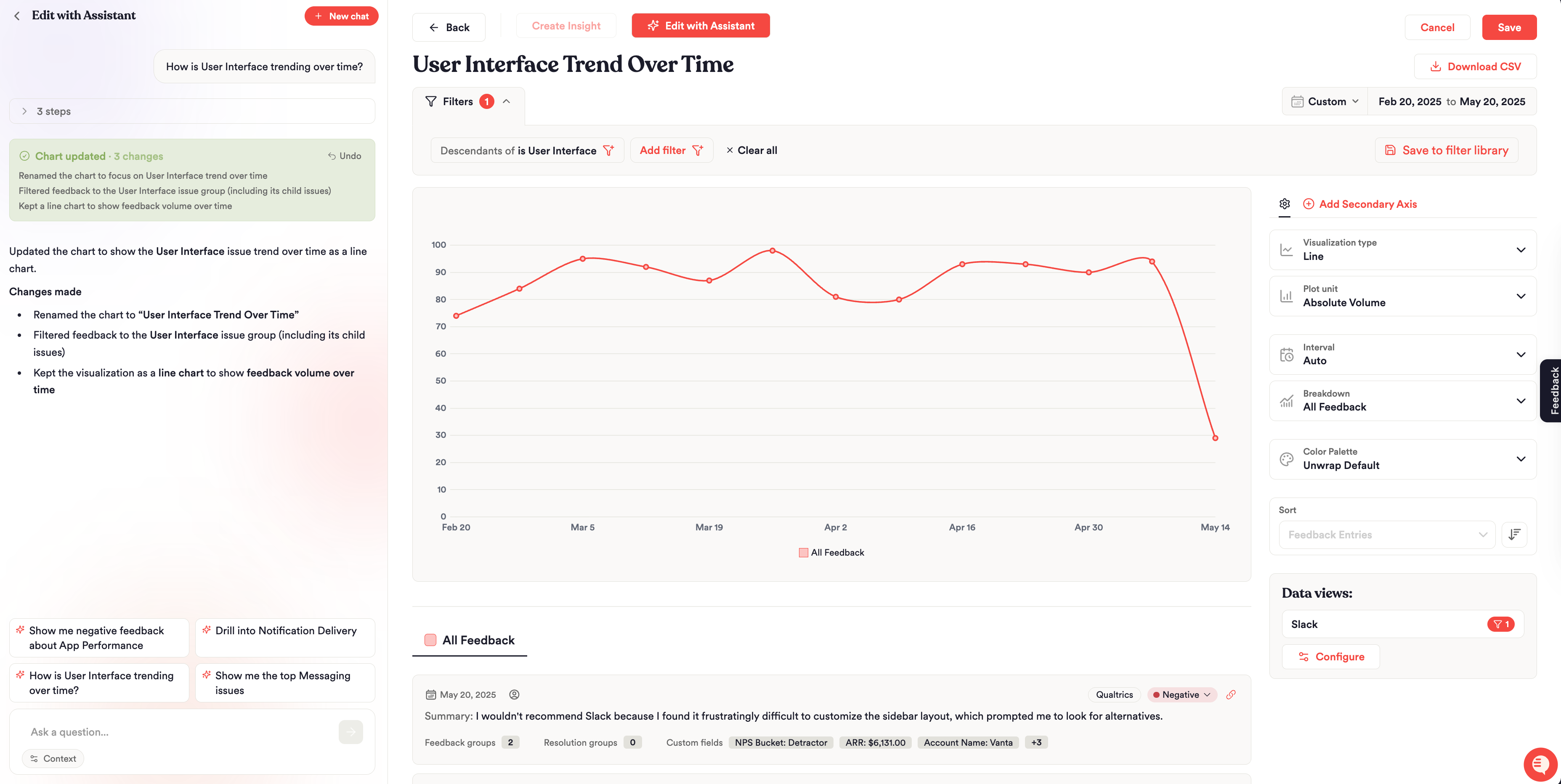
The easiest way to analyze and build charts is to use the Assistant on the Charts page. Click "Edit with Assistant" and use natural language to describe and discuss the issues you'd like to analyze. Once you've found an insight worth tracking, save the chart to a Board to revisit it in the future.
Examples of Charts
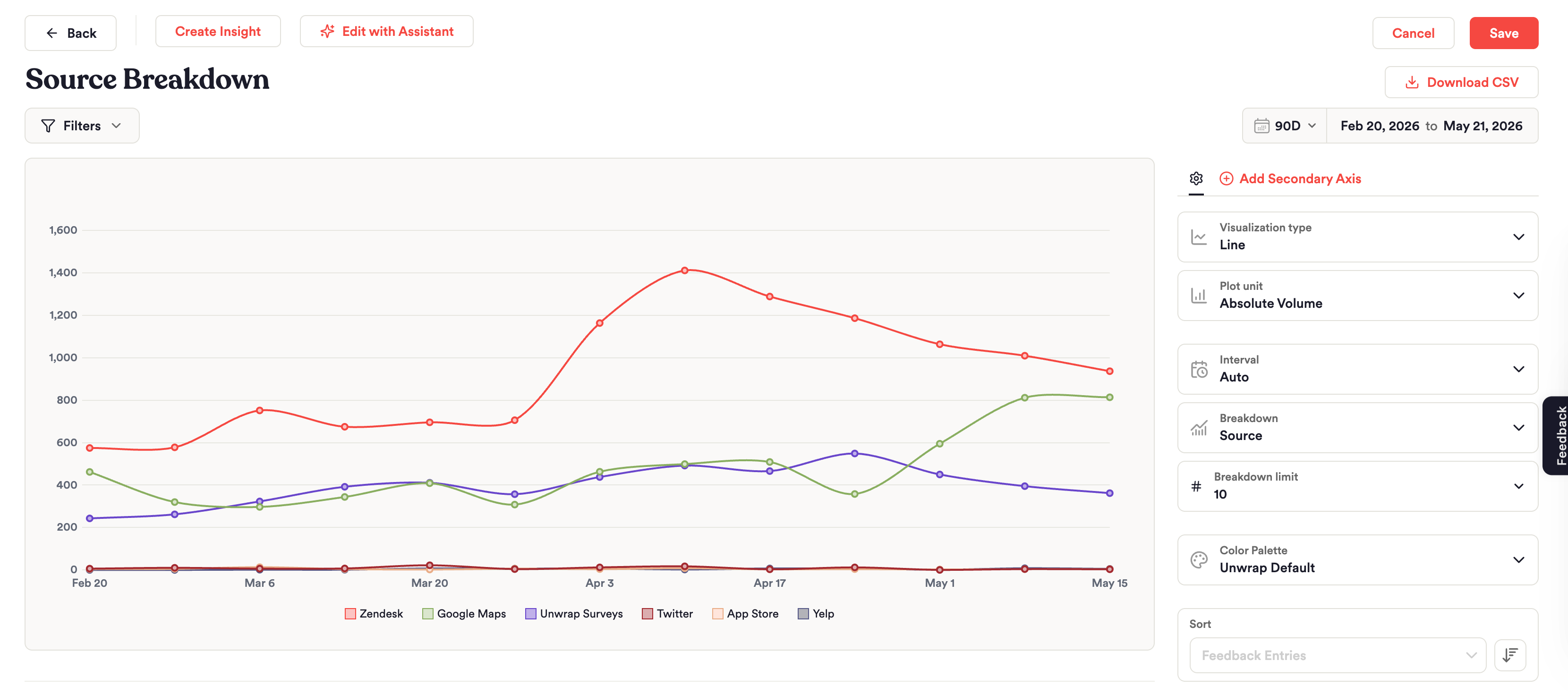
Overall Feedback by Source
To see how much feedback is coming from each integration, select Absolute Volume as your metric, choose a Line or Stacked Bar chart type, and add the "Source" breakdown. This shows you at a glance which channels (e.g., App Store, Zendesk, Intercom) are driving the most feedback over time.
Volume of an Issue by Source
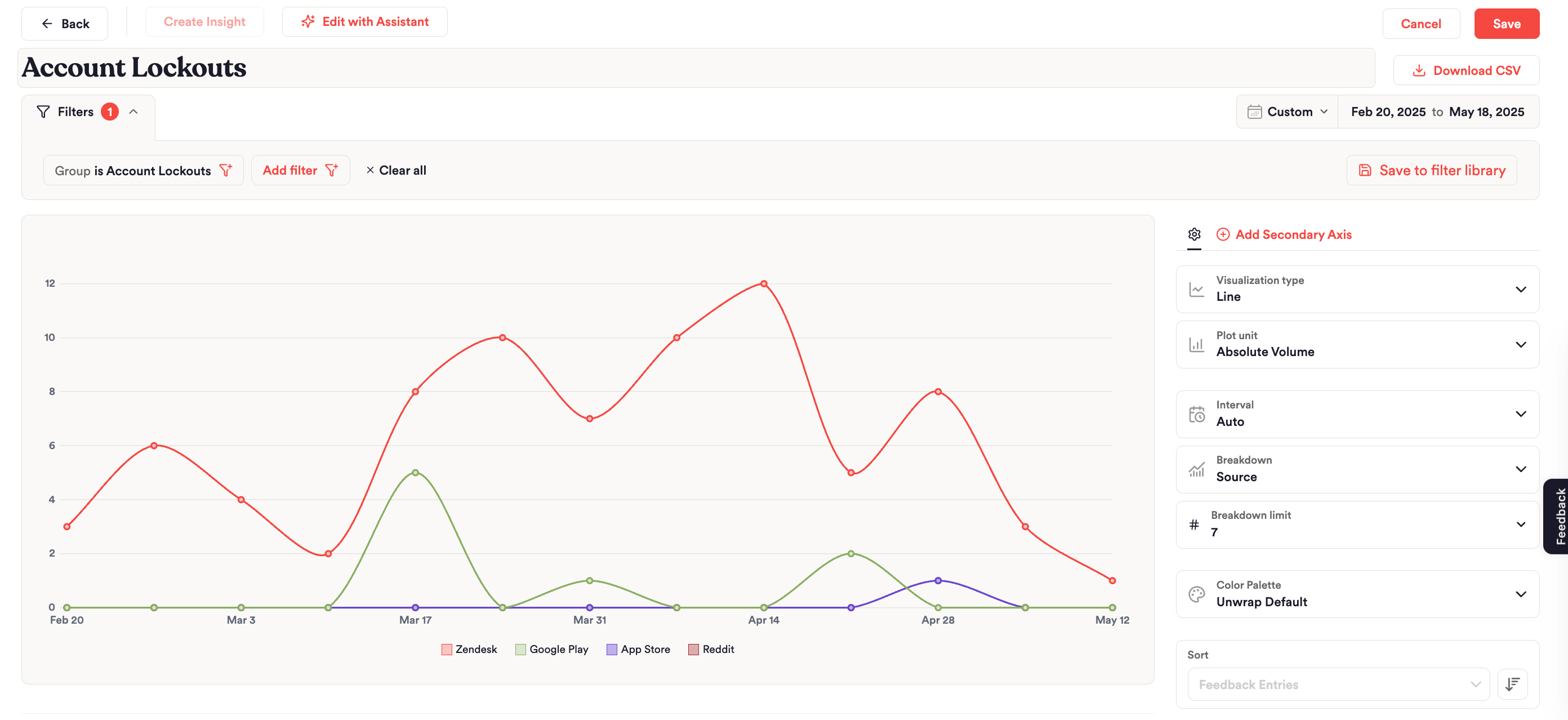
To see which platforms and feedback sources people use when reporting an issue like "Account Lockouts" and seeking resolution, filter to the desired Group, "Account Lockouts", plot absolute volume, and break it down by source. In this example, both Zendesk and Google Play are surfacing significant complaints about account lockouts compared to the Apple App Store.
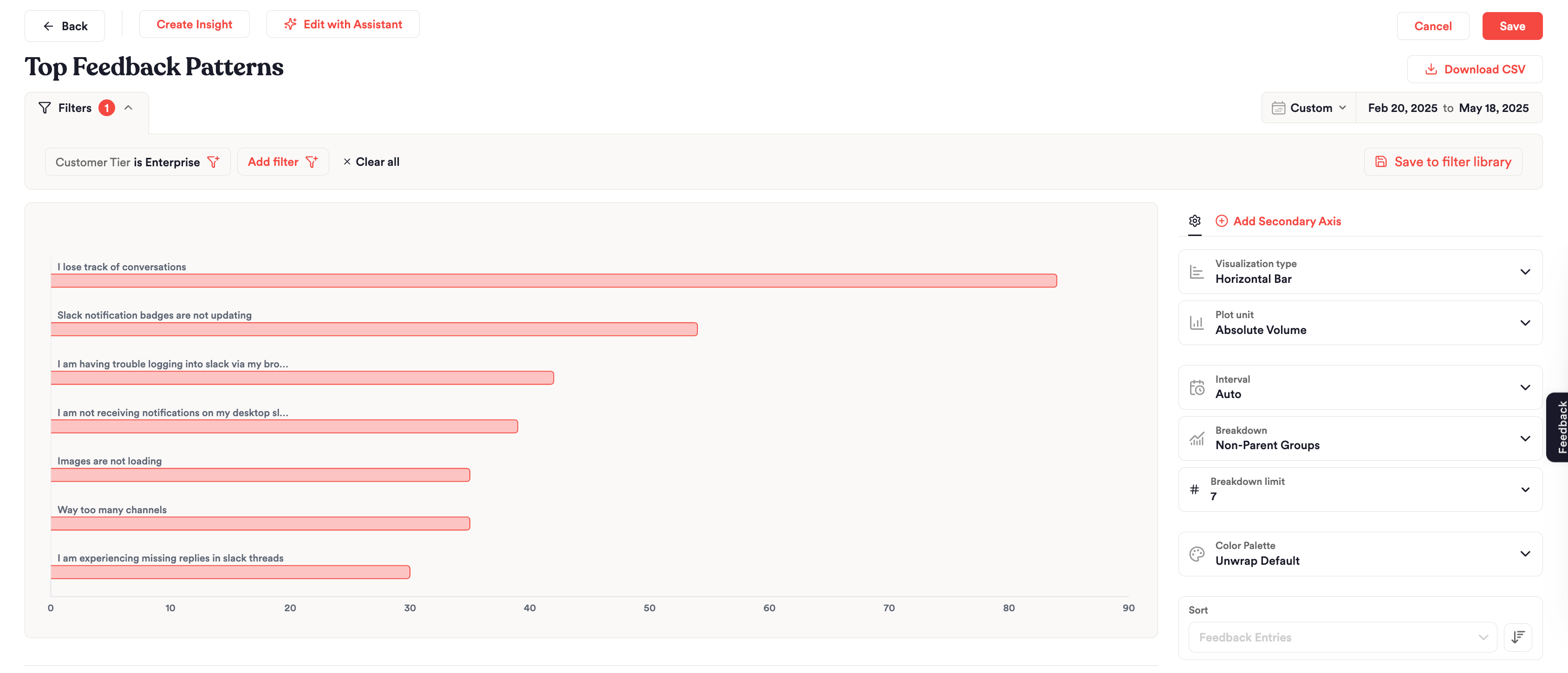
Top Feedback Patterns by Enterprise Customers
To see which issues are driving the most feedback from your enterprise customers, choose a Horizontal Bar chart type, select Absolute Volume as your metric, and break down by Non-Parent Group. Filter to your "Enterprise" segment. This is great for quickly prioritizing which problems to address for your highest-value customers.