Survey Dashboard
Last updated: July 29, 2026
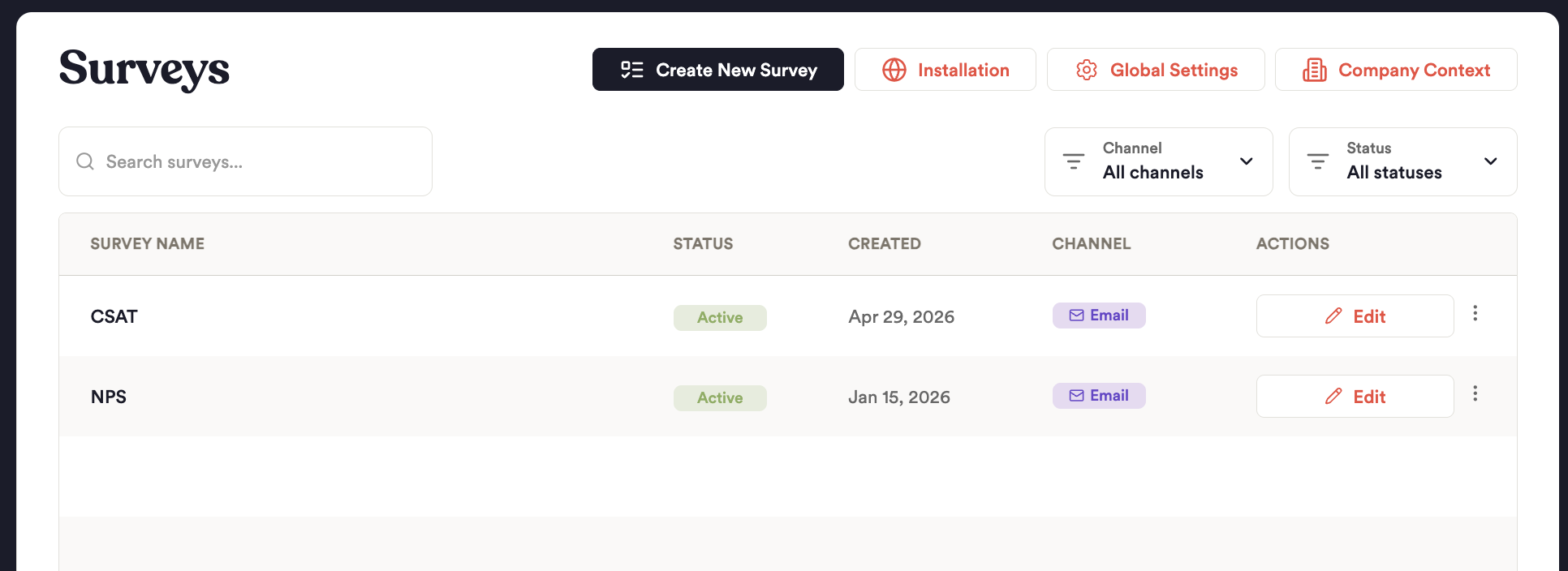
The Survey Dashboard is your central hub for managing all surveys in your organization. From here, you can see all your surveys at a glance, check their status, and take action to manage them.
Understanding the Survey Table
Survey Name
This is the name you gave your survey when you created it - it helps you identify and organize your survey campaigns.
Status
Each survey shows its current status with a color-coded badge:
Active (Green): The survey is live and collecting responses
Draft (Yellow): The survey is still being set up and hasn't been activated yet
Inactive (Gray): The survey has been paused and isn't accepting new responses
What You Can Do
Create a New Survey
Click the "Create New Survey" button in the top-right corner to get started. You'll be prompted to: - Enter a survey name - Add a description (optional) - Move on to configuring your survey
Installation
Configure and install a Survey Installation on your website to capture on-site feedback based on triggers or passive collection.
Global Settings
Use Global Settings to configure the Sender Name and Reply-To Email
Company Context
Include a Company Context system prompt to give the AI context that shapes how it asks follow-ups. Use this to:
Describe the company or product the survey is about ("This survey is for customers of Acme Outdoors, an activewear holding company with 4 brands")
Specify topics to go deeper on ("If the respondent mentions comfort or fit, ask whether the item was too long, short, wide, or narrow")
Specify topics to avoid ("Do not ask follow-up questions about pricing or competitor products or when the initial response alleges fraud")
The system prompt is never shown to respondents — it only influences how the AI frames its follow-up question.
Filters
Filter visible surveys by Channel (email/URL/installation) or status (active, draft, inactive, archived)
Edit Survey
Opens the survey configuring tool to edit questions, design, or any other editable attribute.