Survey On-Site Widgets and Installations
Last updated: September 1, 2026
Connect Unwrap to your website once, then let each survey decide where and when it appears.
Who this is for: Developers, Admins, Product and CX teams running in-context feedback programs
Overview
An installation is Unwrap's connection to one of your websites or web apps. It's the single JavaScript snippet you place on a site, and it's what powers every widget survey that runs there. Most organizations only need one installation. If you manage multiple brands or properties with separate websites — or you're setting up a demo — you can create additional installations, each with its own snippet and its own set of surveys.
You install the snippet once per website. You configure when, who, and how for each survey independently, without touching your site again.
Prerequisites
An active Unwrap account with admin access
Ability to add a JavaScript snippet to your website, either directly or through a tag manager (e.g., Google Tag Manager)
Ability to edit the Content-Security-Policy headers or CSP meta tags on your website(s) to add our domains to the three existing directives:
On script-src, add https://surveys.unwrap.ai
On connect-src, add https://surveys.api.production.unwrap.ai
On frame-src, add https://surveys.unwrap.ai
How It Works
You add one snippet to a website, and Unwrap calls that connection an installation. The snippet starts automatically as soon as the page loads — there's no init call and no per-survey code. Any live widget survey tied to that installation evaluates its own Audience tab (When it should appear, Who it should appear to, How it should look) and shows itself if the visitor qualifies.
Because targeting lives on the survey rather than the installation, you don't need a separate snippet for each survey or each rule. Add the installation's snippet once, and every widget survey connected to it — now or in the future — works from that same connection.
If more than one live survey on an installation could qualify for the same visitor at the same time, Unwrap decides which one to show using a consistent set of rules. See Howcompeting surveys are resolved below.
Getting Started
Finding your installations
Go to Surveys, then click Installations in the top right.
Most organizations have one installation. If you have more, you'll see a list of installations on the left.
Click an installation to see two tabs: Surveys (what's live there now) and Settings (status and install snippet).
Adding another installation
Use this when you have more than one brand or website that each needs its own survey targeting and branding — for example, separate sites for separate product lines, or a demo environment.
From the Installations list, click Need another website?
Name the new installation (e.g., "Acme US" or "Brand B EU") so it's identifiable in the installation list and later on the survey list.
Copy its install snippet from the new installation's Settings tab (see below) and add it to that site.
Each installation is independent: its own snippet, its own live surveys, its own status. A widget survey belongs to exactly one installation at a time, but you can move a survey to a different installation later from that survey's Audience tab.
The Surveys tab: what's live, and how competing surveys are resolved
Open an installation and click Surveys to see every survey currently tied to that installation, along with a running count of how many are live.
If more than one live survey could show to the same visitor, Unwrap picks one for you using this order:
The most specific survey goes first. An exact page match beats a "starts with" or "ends with" match, which beats "contains," which beats "everywhere." At the same When, a stricter (more restrictive) Who audience beats one it fully includes, and any Who condition beats no condition at all (everyone).
Surveys that are equally specific split visitors between them. Each visitor keeps seeing the same survey once they've been assigned to it. Where those surveys also target a specific audience, only someone who matches more than one of them gets split; everyone else sees whichever one applies to them.
A broader survey only shows when none of the more specific ones apply to that visitor. Use this for a catch-all, sitewide survey that fills in the gaps your more targeted surveys leave open.
Sampling runs last, and only on the survey Unwrap already picked. Sampling rates don't add up across competing surveys — competing surveys each sampling at 50% doesn't mean every visitor sees one of them; it means each qualifying visitor has a 50% chance of seeing the one they were assigned, so roughly half see nothing. To set up 50/50 sampling with competing surveys, set each to 100%.
This is why an installation with several live surveys still behaves predictably: your most targeted survey always wins the pages it was built for, and a general, a sitewide survey only picks up the visitors none of the others were meant for.
The Settings tab: status, snippet, and install method
Open an installation and click Settings to find:
Status — An Active/Inactive toggle. When Active, surveys on this installation can appear on your site. When Inactive, nothing on this installation shows, regardless of any individual survey's own status.
Install snippet — The
<script>tag for this installation. Add it once, anywhere in your site's HTML, or as a tag in your tag manager.Google Tag Manager instructions — Step-by-step setup for installing via GTM, plus optional tags for passing attributes and tracking custom events (see below).
Installation ID — The unique ID embedded in the install snippet's URL, useful if you need to confirm which installation a given snippet belongs to.
Configuration Attributes
Option | Description | Default | Available Values |
|---|---|---|---|
Status | Whether surveys on this installation can appear on your site at all | Active | Active, Inactive |
Install snippet | The JavaScript embed that connects your site to this installation | Auto-generated per installation | N/A (copy as-is) |
Installation ID | The unique identifier embedded in the snippet's URL | Auto-generated | N/A |
There's no separate targeting configuration at the installation level. All of that lives on each survey's Audience tab.
Integration Setup
Installing the snippet directly
Add this once, anywhere in your site's HTML (commonly the <head>). You can also find this in your Installation Settings, including your installation ID:
<script>
  (function(w,d){
    if (w.UnwrapSurveyWidget) return;
    var q = [];
    var api = w.UnwrapSurveyWidget = { q: q };
    ['setAttributes','removeAttributes','track','destroy'].forEach(function(method) {
    api[method] = function() { q.push([method, arguments]); };
    });
    var script = d.createElement('script');
    script.async = true;
    script.src = 'https://surveys.unwrap.ai/embed.js?id=<your-installation-id>';
    d.head.appendChild(script);
})(window, document);
</script>
The widget queues any calls you make to it (setAttributes, removeAttributes, track) before the underlying script has finished loading, so it's safe to call these methods immediately after the snippet — even before the survey engine has finished initializing.
Installing via Google Tag Manager
Add the setup tag. In your GTM container, create a Custom HTML tag, paste the install snippet above, set its trigger to All Pages, then publish the container (or use Preview first to test).
Send attributes (optional). For a no-code setup, a survey's Who conditions can read a data layer value, cookie, URL parameter, or JavaScript variable directly and live, without any extra tag. Use setAttributes only when you need to push a value that isn't otherwise readable from those sources. To push a value via GTM: create a GTM Data Layer Variable (e.g., DLV - tier), then add a second Custom HTML tag:
<script>
  window.UnwrapSurveyWidget.setAttributes({ tier: '{{DLV - tier}}' });
</script>
Fire this tag after the setup tag and before the survey evaluates the visitor — queued calls are applied before the widget auto-initializes. You can also fire it again after login to refresh targeting with newly known values.
Track custom events (optional). For a survey whose When is set to a custom event, create a Custom HTML tag containing the track() call, and attach it to the GTM trigger that represents the action you want to fire on:
<script>
  window.UnwrapSurveyWidget.track('checkout_started');
</script>
Widget JavaScript API reference
Method | What it does |
|---|---|
| Attaches one or more key/value pairs to the current visitor. Used by a survey's Who conditions, by personalization parameters in question text, and stored as metadata on the resulting survey response entry for filtering and segmentation. Calling it again merges in new values rather than clearing previously set ones. |
| Removes previously set attributes by key. |
| Fires a named event. Any live survey whose When is set to that custom event is evaluated immediately. |
| Removes the widget from the page and stops it from evaluating any further triggers. |
Example:
UnwrapSurveyWidget.setAttributes({brand: 'acmeshoe',
locale: 'en-US',
userId: 123,
abc: 'xyz',
});
CSP Headers and meta tag whitelisting:
A team member with access to edit the Content-Security-Policy headers or CSP meta tags on your different websites needs to add our domains to the three existing directives:
On script-src, add https://surveys.unwrap.ai
On connect-src, add https://surveys.api.production.unwrap.ai
On frame-src, add https://surveys.unwrap.ai
Staging Environments
You can see how your survey will look on a blank page opened by us or by configuring Staging domains on an Installation.
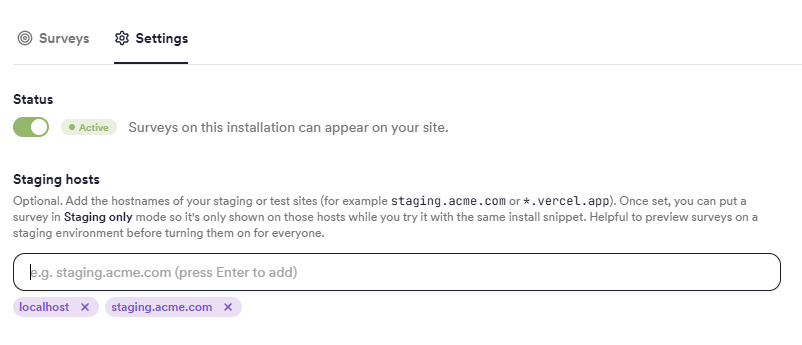
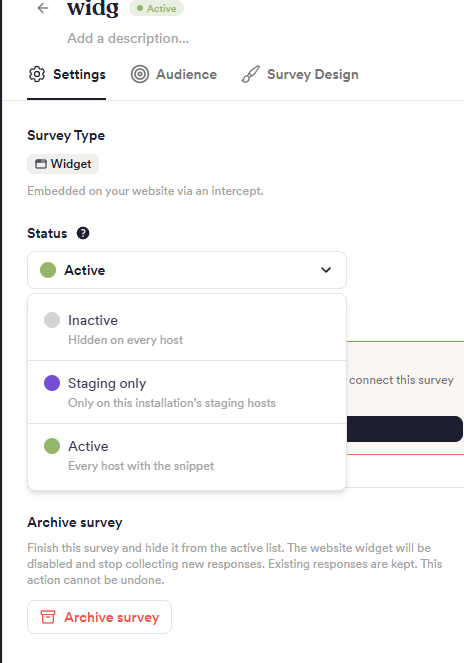
If one or more staging domains are configured, the survey shows a new selectable status:
Staging only.When
Staging onlyis selected, the survey will be enabled only in those pages where the snippet is installed AND the domain matches one on the list. Given that you don't add your prod domain to this list, it won't be shown to real customers until you move it toActive
The
Preview Surveymodal now lets you either open a blank page, or place one of your staging domain URLs and open it there. If you have the snippet installed on that site, when you use the preview modal, it launches a one-time browser session with the survey, allowing you to see what the survey would look like on that page, regardless of what status the survey is in.
Best Practices
Give each brand or property its own installation if they have separate websites, so branding, targeting, and responses stay cleanly separated and you never risk showing the wrong brand's survey on the wrong site.
Install the snippet sitewide, once, via your tag manager's "All Pages" trigger. Let each survey's Audience tab, not the install location, control where it can appear. This avoids needing a code change every time you add a new survey or targeting rule.
Use GTM Preview before publishing to confirm the setup tag fires on every page and that any attribute or event tags fire exactly when you expect.
Build a general, sitewide survey as a fallback on installations with several targeted surveys, so visitors who don't match any specific rule still have a chance to give feedback.
Limitations
Installations, and the widget generally, are available for web environments only — there's no native mobile SDK yet.
An installation's Active/Inactive status is an all-or-nothing switch for that site. You can't pause one survey on an installation from here; pause the individual survey instead.
FAQ
Q: Do I need a separate installation for every survey? A: No. One installation supports any number of live widget surveys at once, each with its own Audience tab controlling when and to whom it appears. Create a separate installation only when you have a genuinely separate website or brand.
Q: Can I move a survey to a different installation? A: Yes. Open the survey, go to its Audience tab, and use Change next to the installation name in the Live Summary panel. See The Audience Tab: When, Who & How.
Q: Do I need to touch my site's code again after installing the snippet? A: Only if you want to pass custom attributes or fire custom tracked events. Otherwise, no — every new survey, new targeting rule, or design change is configured entirely in Unwrap.
Q: How do I know which installation a survey belongs to? A: The survey list shows each survey's installation, and the survey's Audience tab shows it in the Live Summary panel.