Real-Time Alerts: Get Notified When Customer Feedback Spikes
Last updated: November 13, 2026
Real-time alerts help customer experience (CX) and product teams catch customer issues proactively, instead of waiting for the next survey or quarterly review.
Unwrap watches your customer feedback from every connected channel. When a new complaint appears or an existing one spikes, it detects it, summarizes it and sends you an alert.
Here's how alerts work, what triggers one, who gets them and how to tune them.
What Real-Time Alerts Are
Your feedback changes every day. Real-time alerts highlight emerging, critical customer complaints as soon as Unwrap's system finds them.
Alerts are proactive. You don't need to build a report or check a dashboard to get one.
By default, real-time alerts look for insights across all of your Unwrap Views where data is regularly ingested. They focus on:
Newly identified patterns of customer feedback
Existing patterns of feedback that are significantly elevated or spiking compared to historical data points
What Triggers a Real-Time Alert
A single mention doesn't trigger an alert. Unwrap flags a spike only when a Group clears every one of these checks:
The Group hits a 14-day high, at least 25% above its prior peak.
It outpaces its own 2-, 7-, 14- and 30-day trailing averages.
It clears a statistical hurdle: reaching an all-time high, doubling day over day, or exceeding significant standard deviations above its historical mean.
It passes large language model (LLM) quality gates for precision, coherence, urgency and duplicate detection.
It passes deterministic filters that screen out spam and automated tickets.
What an Alert Includes
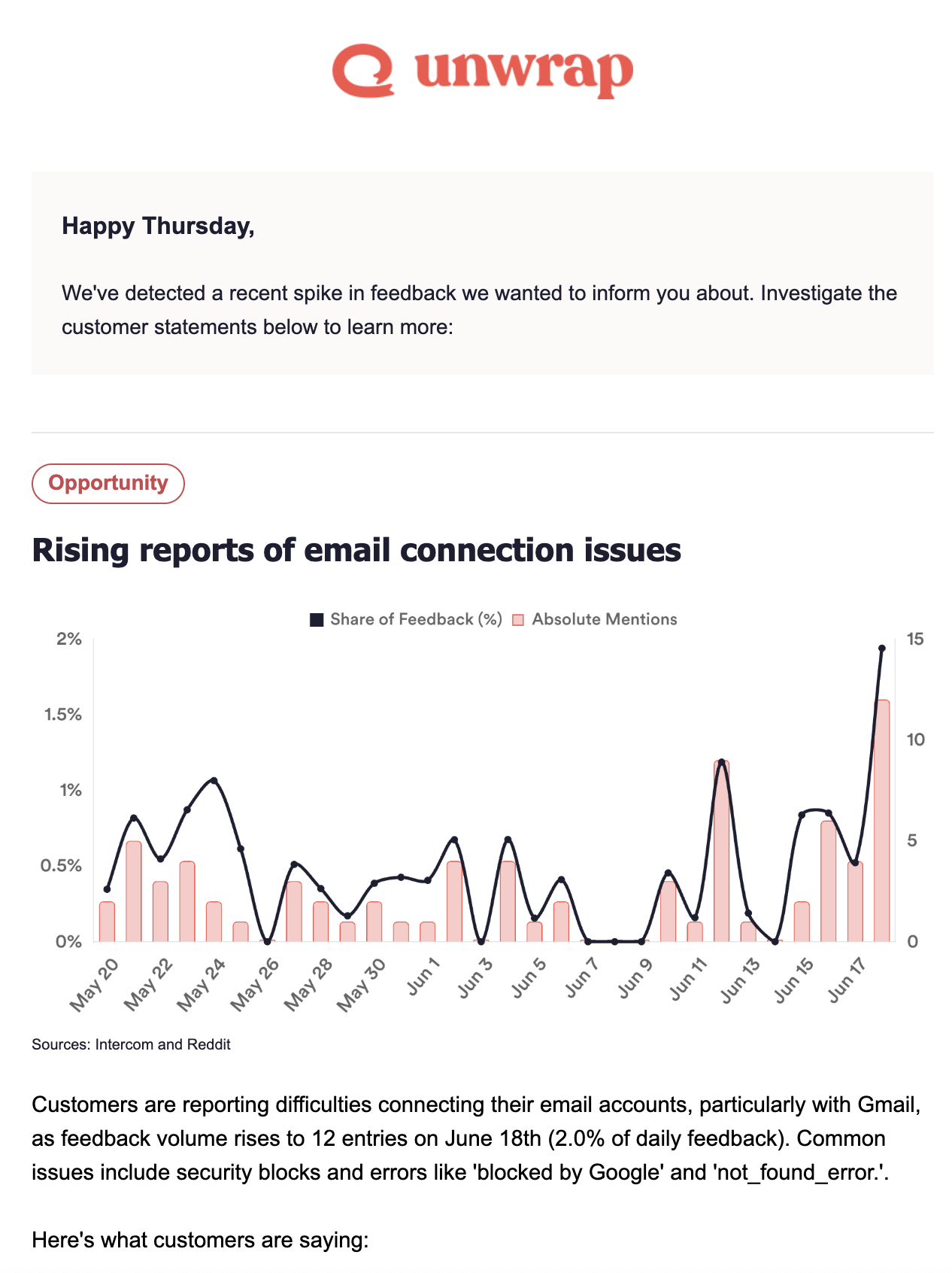
Each alert summarizes the new or spiking pattern Unwrap found. For example, a Slack alert might report a spike in volume for the Group "Integrations page is stalling."
Every real-time alert also lists the data sources that power your alerts, so you know which channels the pattern came from.
The Alerts page supports the same filters as the Feedback, Taxonomy and Boards pages.
Who Receives Alerts, in Slack or Email
By default, real-time alerts go by email to everyone in your Unwrap organization, and they can also post to Slack.
To add specific people, invite them to join your organization.
To add distribution lists as recipients, email contact@unwrap.ai.
To send alerts to Slack, connect Slack to Unwrap, then tell your Unwrap representative which channel or channels you'd like alerts sent to.
Connecting Slack
Slack is often where day-to-day discussion happens, so alerts there let your team decide on next steps in the same place. To connect:
Go to your Organizations page, using the link toward the bottom of the left sidebar.
In the Connections section, click Connect next to Slack.
Authenticate Slack. You'll need admin rights for your Slack workspace, or a colleague with admin rights can complete this step. If a service account manages your Slack workspace or apps, someone with access to that account should complete the connection.
Configure the OAuth scopes channels:read (to read the list of public channels), chat:write and chat:write.public (to post to public channels).
To post to a private channel, add the Unwrap Slack app directly to that channel in Slack.
This connection lets Unwrap send alerts and scheduled reports. Chatting with the Unwrap Assistant in Slack is a separate connection. See Allow Unwrap to Send Alerts and Reports in Slack.
Acting on an Alert
Every real-time alert points to a Group. From there, a few next steps help your team follow up:
Open the Group to read the feedback behind the spike, and break it down by a custom field such as plan tier or region to see which customers it affects.
Create a ticket in Jira, Asana or Linear straight from the Group with Linked Actions, then watch whether related complaints fall once the issue is resolved. Connecting these tools needs Unwrap Admin permissions.
Add an event note to the Group's chart, such as "Shipped fix for missing notifications on iOS," to see whether volume changes after the fix.
Subscribe to the Group to get a daily or weekly summary of new feedback while you work on it.
Adjusting Alert Sensitivity and Focus
By default, alerts include the insights Unwrap's system deems most important. You can change that in 2 ways:
Sensitivity: if you're getting too few or too many alerts, you can customize the sensitivity threshold.
Focus: contact Unwrap if there are specific types of insights or product areas you'd like your alerts to focus on.
To follow one issue closely no matter how much it moves, subscribe to its Group instead.
Changing the Sensitivity Threshold
If you're getting too many real-time alerts, or too few, you can customize the sensitivity threshold for your real-time alerts. Contact us directly at contact@unwrap.ai for more information.
FAQs
How Often Do Alerts Arrive?
It depends on the size of your feedback corpus, how many distinct Groups Unwrap has identified, and how much your feedback changes from day to day.
Some weeks you may receive 2 or 3 real-time alerts in a single day, and other weeks none at all.
Can I Get Alerts About Only One Product Area?
Yes. Contact Unwrap to focus your real-time alerts on specific product areas or types of insights. You can also subscribe to the Groups for that area.
What If I Have Feedback or a Question About an Alert?
Unwrap loves feedback. Send a note to contact@unwrap.ai.